
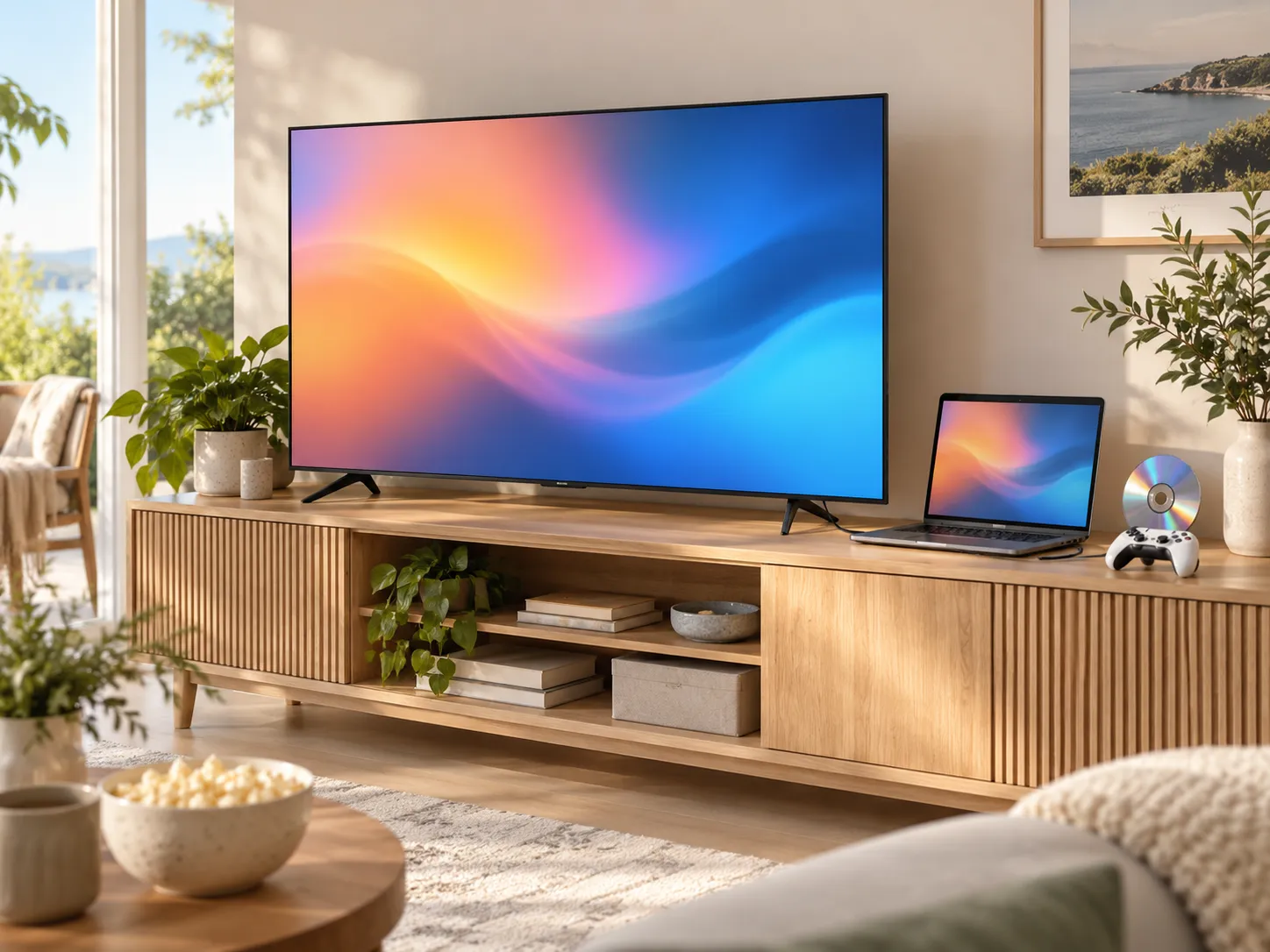
Your smart TV can stream half the known universe, so it feels reasonable to expect it to handle a technology from 1997. Then you look at the TV, and there is no slot. You look at the ports — HDMI, USB, antenna — and start wondering whether one of them is the answer.
Short version: outside a niche of small TV/DVD combo sets, smart TVs cannot play discs by themselves — and the USB port is a trap we will explain in a moment. But the movie night is very much still on — you have three real options, and one of them is probably sitting in your home already.
This guide explains why the TV cannot do it alone, clears up the USB-port misconception, and compares the three working setups: a standalone disc player, a disc-edition game console, and a Windows laptop connected over HDMI.
Quick answer: A smart TV has no disc drive, so it needs a device to play the DVD and send the picture over HDMI. Your three options: a standalone DVD/Blu-ray player (~$30-60 for DVD models), a disc-edition game console you may already own (PlayStation and Xbox disc models play DVDs), or a Windows laptop with a USB DVD drive and a player app like MediaPlay DVD Player (free, Microsoft Store), mirrored to the TV with an HDMI cable. If the laptop and a drive are already in the house, that last option costs nothing new.
Why a smart TV cannot play DVDs by itself
A smart TV is a display with streaming apps. Playing a DVD requires two things it does not have: a disc drive to physically read the disc, and licensed DVD decoding to turn the disc’s MPEG-2 video and navigation structure into a picture. Mainstream TV manufacturers dropped built-in disc hardware years ago — streaming killed the demand, and the licensing and mechanics added cost. (One narrow exception survives: small TV/DVD combo sets, typically 24-inch-class units sold for RVs, kitchens, and kids’ rooms — a few of them with smart features. If you owned one, you would know; the standard living-room smart TV has no slot.)
So the TV’s role in every working setup is the same: it is the screen. Something else reads and decodes the disc and delivers video over HDMI.
The USB-port misconception
A tempting idea: the TV has USB ports, external DVD drives are USB devices — connect one to the other? This does not work. The TV’s USB ports are for media files — MP4s and photos on a flash drive. Reading a DVD movie disc requires drive control and DVD-Video decoding that TV firmware simply does not include. Plug a DVD drive into a TV and, at best, nothing happens.
(Related confusion: a DVD is also not a file you can copy onto a flash drive for the TV — commercial discs are structured and encrypted for disc players. The VIDEO_TS structure is its own topic.)
So: three real options. Here they are, cheapest-if-you-already-own-it first.
Option 1: A laptop over HDMI (often $0 extra)
If there is a Windows laptop in the house, you may already own a full DVD player for your TV. The recipe:
- An HDMI cable (or a USB-C-to-HDMI adapter for ports without HDMI) — a few dollars if not already in a drawer
- A disc drive — built-in on older laptops; otherwise a $20-40 USB DVD drive (reliable picks here)
- A player app — Windows 11 does not play DVDs natively; MediaPlay DVD Player is free from the Microsoft Store and starts a disc on its own through AutoPlay, or as soon as you insert it while the app is open
Setup, step by step
- Connect the laptop to the TV with the HDMI cable and switch the TV to that HDMI input
- Press Windows key + P and choose Duplicate (TV shows what the laptop shows) or Second screen only (TV becomes the only display)
- If sound still comes from the laptop: Settings → System → Sound, choose the TV as the output device (it appears as an HDMI audio device)
- Insert the disc, open the player, go full screen
- Sit down; the couch is now a DVD cinema
The strengths: it likely costs nothing new, the laptop’s decoding and upscaling generally outclass cheap disc players, and subtitles and audio tracks are all under your control. The honest weaknesses: a cable runs across the room, pausing means walking to the laptop (or a cheap wireless mouse becomes your remote), and it is a setup rather than an appliance. For a weekly movie night it is perfect; for daily disc watching, an appliance may serve better — which is Option 2 and 3’s territory.
One habit worth adopting: this same trick works on most hotel and cottage TVs, which makes the laptop-plus-drive combination a strong travel setup too.
A note on wireless casting
Casting the screen wirelessly (Miracast and similar) technically exists, but disc playback over wireless mirroring commonly stutters and fights copy-protection quirks. For discs, the cable wins. Use wireless mirroring for slideshows, not movies.
Option 2: A game console you may already own
If a disc-edition console is under the TV, the DVD player is already installed:
- PlayStation disc models (PS4, and the PS5 models with a disc drive) play DVD movies — a one-time system update may be required on first use
- Xbox disc models (Xbox One family, Xbox Series X) play DVDs — Xbox prompts you to install its free Blu-ray Player app on first insert
- Not the drive-less models: PS5 Digital Edition and Xbox Series S have no disc slot, and the Nintendo Switch does not play DVDs at all
Insert the disc, and the console treats it like any media. Picture quality is good, the game controller works as a remote, and the cost is zero. Region rules still apply — consoles respect DVD region codes like any player. If a console is present, this is usually the path of least resistance for regular disc watching.
Option 3: A standalone DVD or Blu-ray player
The classic appliance still exists and still makes sense for daily use. Basic DVD players with HDMI output typically cost $30-60 new; Blu-ray players (which also play DVDs and usually upscale them nicely) commonly start around $80-100. Prices vary by brand and market.
Strengths: it is an appliance — remote control, instant on, zero setup after the first cable, usable by every member of the household including the ones who will never touch a laptop. Many models upscale DVDs respectably for large TVs. Weaknesses: it is one more box, one more remote, and money spent on hardware that does exactly one thing — the same duplication question raised in our portable player comparison.
If discs are a daily habit in your household, buy the appliance. If they are an occasional pleasure, Option 1 or 2 probably covers it free.
📊 The three options compared
| Option | You need | Cost if starting from zero | Best for |
|---|---|---|---|
| Laptop over HDMI | Laptop, HDMI cable, USB drive if no built-in, free player app | ~$0-40 when the laptop is owned | Occasional movie nights; travel and hotel TVs; best picture control |
| Disc-edition console | PS4/PS5 disc model or Xbox One/Series X, already connected | $0 when owned (consoles are not worth buying just for DVDs) | Households where the console already lives under the TV |
| Standalone player | DVD or Blu-ray player + HDMI cable | ~$30-60 (DVD) / ~$80+ (Blu-ray) | Daily disc watching; remote-control simplicity for everyone |
Hardware prices are typical ranges at the time of writing and vary by market.
FAQ
Can a smart TV play DVDs without a DVD player?
Not a standard one. Regular smart TVs have no disc drive and no DVD decoding, so something must read the disc — a standalone player, a disc-edition console, or a computer — and send the picture to the TV over HDMI. The only exception is the niche category of small TV/DVD combo sets with a built-in drive, sold mainly for RVs and bedrooms.
Can I plug a USB DVD drive into my smart TV?
No — this is the most common misconception. TV USB ports play media files from flash drives; they cannot operate a DVD drive or decode a movie disc. The same USB drive works fine plugged into a Windows laptop, which can then feed the TV over HDMI.
Does a PS5 or Xbox play DVDs?
The disc-drive models do: PS4, disc-edition PS5, Xbox One, and Xbox Series X all play DVD movies (Xbox installs a free player app on first use). PS5 Digital Edition and Xbox Series S have no drive, and Nintendo Switch does not play DVDs.
How do I get sound on the TV when playing a DVD from my laptop?
HDMI carries audio. If sound stays on the laptop, open Settings → System → Sound and select the TV (the HDMI device) as the output. Do it once; Windows usually remembers the choice for that TV.
Will this work on a hotel TV?
Usually, yes — most hotel TVs have a reachable HDMI port and allow input switching. Laptop, drive, HDMI cable, player app: the same four pieces make a hotel room a movie night. A few hotel systems lock input switching; there is no universal workaround for those.
Why does the DVD look soft on a big TV?
DVDs are standard-definition (720×480/576). On a 55-inch 4K panel, that source is being stretched a long way — some softness is physics, not a fault. Good players and laptop software upscale respectably, but a DVD will never look like streaming 4K. Sit a little farther back; nostalgia helps too.
Trademark notice
PlayStation is a trademark of Sony Interactive Entertainment. Xbox is a trademark of Microsoft Corporation. Nintendo Switch is a trademark of Nintendo. This article is independent and is not affiliated with, sponsored by, or endorsed by these companies.
Sources
- MediaPlay DVD Player: Microsoft Store listing
- PlayStation Support: playstation.com/support
- Xbox Support: support.xbox.com
Final takeaway
The smart TV is the screen; something else has to be the DVD player. If a disc-edition console is already under the TV, use it. If discs are a daily ritual, a $30-60 standalone player earns its shelf space. And for everyone in between, the laptop in the next room plus an HDMI cable is a complete DVD setup that costs almost nothing to activate.
For that laptop route, MediaPlay DVD Player is free from the Microsoft Store — install it, plug in the cable, and the disc shelf is back in business on the big screen.
