
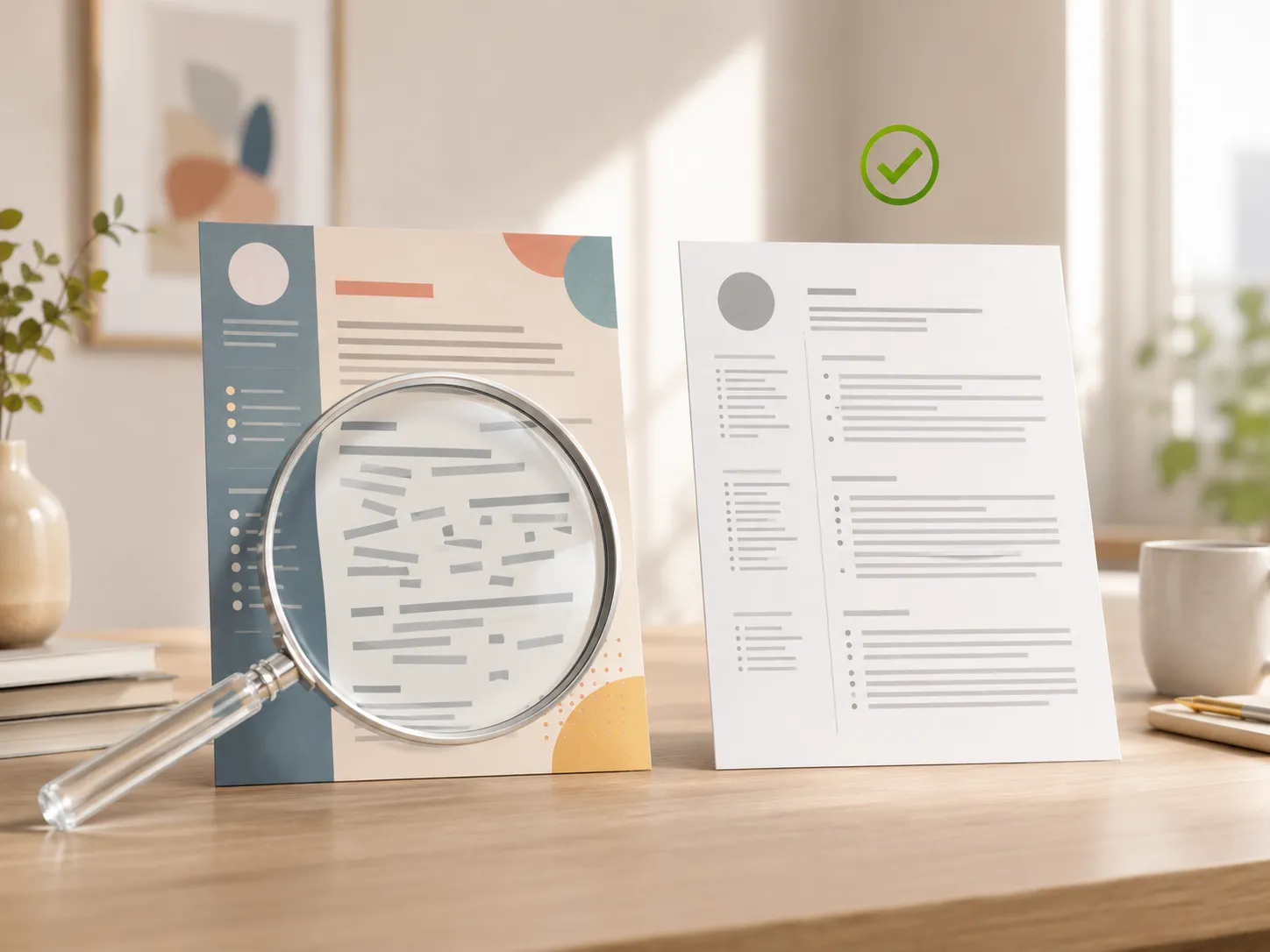
You spent an evening in Canva making a resume that looks better than anything Word ever produced — clean sidebar, subtle icons, a skills section with elegant little bars. You have sent it to a dozen openings. Silence.
There are many reasons applications go unanswered, but for design-heavy resumes there is one worth ruling out first: the possibility that the hiring software on the receiving end never managed to read your resume at all. Most mid-size and large employers run applications through Applicant Tracking System (ATS) software before a person sees them — and the parsing step is exactly where designed layouts get hurt.
So, are Canva resumes ATS-friendly? The honest answer: some are, many are not, and the difference is not Canva itself — it is which design elements your template uses. Better yet, you do not have to guess. You can test your own exported file in about two minutes.
Quick answer: Simple one-column, text-based Canva templates generally parse fine. Popular design-heavy styles — two columns, sidebars, icons, skill bars, text in graphics — often reach recruiters as scrambled or incomplete text. Run the parse test below on your exported PDF. If it fails, either simplify the design in Canva or rebuild in an ATS-safe tool: Resumy (free, Windows) imports your existing PDF so you do not retype anything, and scores the result against ATS rules as you fix it.
Why a beautiful PDF can fail invisibly
When you upload a resume to an application portal, the ATS converts it to plain text and tries to sort that text into sections — contact info, experience, education, skills. The recruiter usually sees that parsed version, not your designed PDF.
Parsing is a linear process: the software extracts text in reading order, left to right, top to bottom. Documents built as a single flowing column survive this well. Documents built as visual arrangements — where the “order” only exists to a human eye scanning a layout — often do not. The parser does not know your sidebar is a sidebar. It just extracts text in whatever order the PDF stores it, which may interleave your skills column with your job history line by line.
The cruel part is that nothing warns you. The portal accepts the upload, says “application received,” and the scrambled version quietly scores poorly or displays as a mess. This is the general mechanism behind ATS screening — our ATS resume guide covers it in depth.
The template elements that cause failures
Whether your specific Canva resume parses cleanly depends almost entirely on which of these it uses:
Two-column layouts and sidebars. The single biggest risk. Text extraction frequently interleaves the columns — a line from the sidebar, a line from the main column, back and forth — producing word salad. Some parsers handle columns; many do not; you cannot control which one an employer uses.
Skill bars, dots, and rating graphics. The visual says “Excel — four of five dots.” The extracted text says “Excel” at best, and nothing about level. Any information carried by graphics alone vanishes in parsing.
Icons in place of labels. A phone icon next to your number looks clean, but the parser reads only the number, with no label — some systems then fail to classify it as a phone number at all. The same applies to email and location icons.
Text inside graphics or image exports. If any text is rendered as part of an image — or the whole PDF is exported as a flattened image — that text does not exist to the parser. This is the worst-case failure: a resume that contains, as far as the software can tell, nothing.
Decorative fonts and tight letter-spacing effects. Stylized display fonts and spacing tricks occasionally corrupt extraction, turning words into broken character runs.
Headers, footers, and text boxes. Contact details placed in a decorative header band or floating text box are skipped entirely by some parsers.
Photos. Common on European CVs, ignored by parsers — mostly harmless to extraction, but they can disrupt the reading order of text positioned around them.
None of this makes Canva a bad tool. Canva is a design tool doing exactly what it promises: producing documents optimized for human eyes. The mismatch is between design-first output and software-first screening.
The two-minute parse test
You can see roughly what an ATS sees using tools already on your PC. Export your Canva resume as a PDF and run these three checks:
Test 1: The select-all test
Open the PDF in any viewer (Edge works fine). Press Ctrl+A to select everything, Ctrl+C to copy, then paste into Notepad.
Now read what came out — this approximates the raw text a parser extracts:
- Is your name and contact info present, at or near the top? If your header band or text box vanished, so did your identity.
- Is the text in a sensible reading order? Job titles followed by their employers, dates, and bullets — or fragments of the sidebar spliced into the middle of your work history?
- Is anything missing entirely? Compare against the visual: skills carried by graphics, section labels carried by icons.
If you cannot select any text at all, the PDF is image-based — a hard fail; the parser gets nothing.
Test 2: The reflow test
Open the PDF with Microsoft Word (File → Open — Word converts PDFs to editable documents). Word’s conversion is an aggressive parse, similar in spirit to what ATS software attempts. If Word produces a reasonably ordered document, that is a good sign. If it produces jumbled text boxes and interleaved fragments, expect parsers to struggle the same way.
Test 3: The structure read-through
Looking at your Notepad output from Test 1, check for the section signals parsers look for: clear headings (Experience, Education, Skills or close equivalents), job entries with title, employer, and dates together, and plain-text contact details. Creative section names (“My Journey,” “What I Bring”) register as unknown sections to literal-minded software.
Reading your result
Pass: everything present, right order, standard headings — your Canva resume is fine for portals. Design-heavy does not automatically mean broken; simpler one-column Canva templates often pass cleanly.
Partial: content present but the order interleaves, or skills/contact labels lost — the resume will parse, badly. Fixable either way below.
Fail: missing sections, scrambled order throughout, or no selectable text — assume portals are not seeing your qualifications at all.
To illustrate the “partial” case: a typical two-column template with a left sidebar extracts something like SKILLS Marketing Manager Project Management Acme Corp 2021–2024 Communication Led a team of... — the sidebar skill list riffled into the job history like a shuffled deck. Every line is present; the meaning is gone.
If your resume failed: two ways forward
Option 1: Simplify inside Canva
Canva can produce ATS-safe output if you rebuild toward plainness: switch to a single-column template, replace icon labels with text (“Phone:”, “Email:”), delete skill graphics in favor of a plain comma-separated skills list, use standard section headings, move contact details into the main text flow, and export as a standard PDF (never as images). The cost is giving up most of what made the design distinctive — you are essentially using Canva to make a plain document.
Option 2: Rebuild in an ATS-safe builder — without retyping
If you would rather keep design and safety separate, rebuild the portal version in a tool built around parseability. This is the workflow Resumy (free, Windows 10/11) is designed for:
- Import your existing Canva PDF. Resumy reads it back into editable fields — no retyping. If your export was image-based, it falls back to text recognition automatically.
- Fix what the import reveals. The import itself is an instructive parse test: whatever landed in the wrong field is what ATS software was mis-reading too. Everything sits in a normal form, so corrections take seconds.
- Pick an ATS-safe template. All nine templates are single-column, typeset layouts designed to stay readable to parsing software while still looking designed.
- Check the score. The built-in ATS engine scores the resume out of 100 — structure, content, formatting, job fit — with a specific reason and fix for every point lost. Paste the job ad to see which keywords you are missing.
- Export clean PDF or DOCX. Everything runs locally — no account, no upload; your resume stays on your PC.
When Canva is still the right choice
Keep the designed resume — just know its job. In creative fields — design, marketing, media — a distinctive resume handed directly to a human is an asset. The same is true at networking events, in direct emails to hiring managers, and anywhere no software sits in the middle.
The practical answer for most people is the two-resume strategy: a designed Canva version for humans, and a parse-clean version for application portals. Same content, two formats, each optimized for its actual reader. The failure mode is only ever using the designed version where software reads first.
FAQ
Are Canva resumes ATS-friendly?
Some are. Simple, single-column, text-based Canva templates generally parse fine. Design-heavy templates with columns, sidebars, icons, and skill graphics frequently fail or partially fail parsing. Test your specific exported file — the two-minute test above shows you what the software sees.
Does Canva have ATS-friendly templates?
Canva’s gallery includes simpler one-column, text-forward templates that tend to parse well. No template is guaranteed — parsing depends on the exact elements used and the ATS on the receiving end — so run the parse test on your export rather than trusting a template label.
Do ATS systems reject PDFs?
No — clean, text-based PDFs are one of the two standard formats (with .docx). The problem is not PDF; it is PDFs whose text is scrambled, boxed, or flattened into images. A PDF that passes the select-all test is fine.
How do I convert my Canva resume to an ATS-friendly format?
Two routes: simplify inside Canva (single column, text labels, no graphics, standard headings), or import the PDF into an ATS-focused builder like Resumy, which converts it into editable fields, lets you apply a parse-safe template, and scores the result before you apply.
Will a photo on my Canva resume fail ATS?
The photo itself is ignored by parsers. Indirect risks: it can disturb the reading order of text placed around it, and in some markets (notably the US) photos are discouraged for bias reasons regardless of parsing. If your target market expects photos, keep it clear of the main text flow.
Why does my Canva resume get no responses even though I’m qualified?
Run the parse test before assuming anything else — if the file fails, qualifications never entered the equation. If it passes, the more common culprits are keyword mismatch with the specific job descriptions and generic, untailored content. Our ATS guide covers tailoring step by step.
Trademark notice
Canva is a trademark of Canva Pty Ltd. Microsoft and Word are trademarks of Microsoft Corporation. All other product names are trademarks of their respective owners. This article is independent and is not affiliated with, sponsored by, or endorsed by Canva or Microsoft.
Sources
- Resumy: Microsoft Store listing
- Canva Help Center: canva.com/help
- Jobscan ATS research: jobscan.co/blog/ats-research
- Harvard Business School / Accenture: Hidden Workers: Untapped Talent (2021)
Final takeaway
A Canva resume is not automatically an ATS problem — but you should not find out by losing interviews. Two minutes with Ctrl+A and Notepad tells you exactly what hiring software sees in your file. If the answer is scrambled, keep the beautiful version for humans and build a parse-clean twin for the portals.
The fastest route to that twin: import your existing PDF into Resumy — free from the Microsoft Store — fix what the import reveals, and export a version that gets read.
