
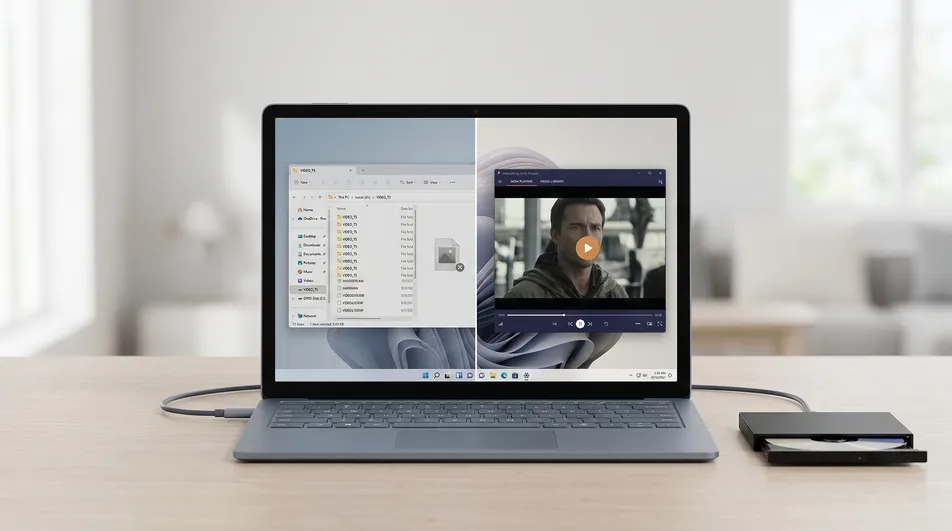
How to Play DVD on Windows 11
You plug in the drive, insert the disc, hear it spin up, and then… nothing useful happens. Sometimes File Explorer opens a folder full of VIDEO_TS, .VOB, and .IFO files. Sometimes the wrong app launches. Sometimes Windows Media Player opens just far enough to make the problem more confusing.
In most cases, the drive is not broken. The usual problem is that Windows 11 no longer includes native DVD movie playback support by default. Your PC can often detect the disc, but it does not have the licensed MPEG-2/DVD decoding layer needed to play a standard DVD movie the way older Windows PCs once did.
That is why the experience feels so strange: the hardware works, the disc appears, but the movie still does not start.
This guide covers what causes that problem, what people usually try first, which options actually work, and how to choose the most practical way to watch DVDs on Windows 11.
Quick answer: If your DVD drive shows up in Windows 11 but the movie does not play, the usual cause is not a broken drive. It is that Windows can detect the disc without including full DVD movie playback support. The most practical free option is VLC. The most practical streamlined option is a dedicated DVD app like MediaPlay DVD Player, which is built for “insert disc and watch” instead of manual file opening and codec guesswork.
📊 Quick Comparison: DVD Playback Methods
| Method | Ease of Setup | Install Source | Best For |
|---|---|---|---|
| Windows built-in apps | Easy | Already on PC | Checking whether the drive is detected |
| Codec packs | Low | Varies | Users who want to experiment |
| VLC Media Player | Good | Web download | Users who want a free flexible option |
| Microsoft DVD Player | Good | Microsoft Store | Users who want an official Microsoft option |
| MediaPlay DVD Player | Very good | Microsoft Store | Users who want a simpler dedicated DVD app |
The practical tradeoff is straightforward: VLC is strong if you want a free, general-purpose media tool. Microsoft DVD Player is the official route. A dedicated app like MediaPlay DVD Player makes the most sense if your goal is not “tinker until it works,” but “put in the disc and watch the movie.”
Why Windows 11 does not play DVDs by default
Windows 11 can often read the disc itself, but reading a DVD is not the same thing as decoding and playing a DVD movie.
A standard video DVD usually relies on older DVD-video structure and MPEG-2 decoding. Microsoft no longer bundles that playback layer by default in modern Windows. In plain English, the PC can see the contents of the disc, but it may not know how to turn them into normal movie playback.
That is why a DVD can appear in File Explorer and still fail to play.
What this means in practice
You may see all of the following and still have a software problem rather than a hardware problem:
- the disc drive appears in File Explorer
- the disc spins and sounds normal
- the
VIDEO_TSfolder is visible .VOB,.IFO, or.BUPfiles are present- Windows asks you to choose an app, but none of the obvious choices work well
Why Windows 11 does not play DVDs by default: the operating system can often detect the disc, but it does not include full native DVD movie playback support out of the box, so you need software that can handle DVD decoding and navigation properly.
That one detail explains most of the frustration people run into.
Windows naming confusion that trips people up
Part of the confusion is the naming. On Windows 11, Media Player is not the same thing as the older Windows Media Player, and neither name guarantees proper DVD movie playback.
That matters because users often see a familiar Microsoft app name and assume DVD support must be included. But app recognition is not playback capability. A player can handle common files like MP4 and still not handle standard DVD-video discs correctly.
Insider clarity: drive detection is not playback support. Seeing the disc in File Explorer or inside a media app only proves Windows can see the hardware or the files. It does not prove that the app can decode DVD video, handle menus, or follow DVD navigation correctly.
What is a VIDEO_TS folder?
If you open the DVD in File Explorer and see VIDEO_TS, that does not mean the disc is corrupted. It usually means Windows is showing you the raw DVD-video file structure instead of playing the movie.
A quick breakdown:
.VOBfiles usually contain the actual video, audio, and subtitle data.IFOfiles contain navigation information such as menus and chapter structure.BUPfiles are backup copies of important DVD navigation information
What is a VIDEO_TS folder? It is the standard folder structure used by many movie DVDs. Seeing it means the disc is being read as files, not automatically played as a movie.
This is why double-clicking random files from the disc often produces a clumsy experience. You may get video, but lose the cleaner disc behavior that makes a DVD feel like a DVD.
Extra clarity: seeing
VIDEO_TSis usually a sign of normal disc structure, not damage. And opening a single.VOBfile is not the same as opening the DVD itself. VOB playback can show video, but full DVD playback also depends on the menu and navigation data stored in the disc structure.
The bad paths users really take first
This is where a lot of time gets wasted.
When a DVD does not play on Windows 11, people usually try sensible-looking fixes that do not really solve the problem. The path often looks like this:
- insert the disc and wait for autoplay
- try Windows Media Player or another built-in app
- open the disc in File Explorer
- double-click
.VOBfiles manually - search online and find old codec-pack advice
- install something random and still get a bad experience
Each of those steps is understandable. Most of them either fail completely or produce only a partial workaround.
Opening folders manually
This proves the disc is being detected, but it does not give you proper playback. You are just looking at the DVD’s internal file structure.
Using the wrong built-in app
Windows apps that handle ordinary media files may still not handle DVD movie playback properly. That is why “but the app plays MP4 files fine” does not tell you much about DVD support.
Trying outdated codec-pack advice
This is one of the most common bad paths. Old forum posts make codec packs sound like the universal answer, but for many users they create more friction than value.
Problems with this route:
- setup can be messy
- results can be inconsistent
- you may not know which download to trust
- you can end up changing system-wide media behavior without fixing the actual experience you want
Opening raw .VOB files and calling it “fixed”
Yes, a .VOB file can sometimes open and display video. But that is not the same as proper DVD playback. Menus, chapters, subtitle behavior, and general disc flow can become awkward fast.
Why opening VOB files is not the same as playing a DVD: a raw video file may show part of the movie, but proper DVD playback also depends on navigation data, chapter structure, menus, and disc logic stored elsewhere on the disc.
That is the difference between “I found a file that plays” and “the DVD works properly.”
What actually works on Windows 11
There are four real-world routes worth talking about.
1. Built-in Windows apps
These are useful mainly for confirming whether the drive is recognized. They are usually not the answer for full DVD movie playback on Windows 11.
This is where many people start, and it is also why many people think their external DVD drive is defective.
2. VLC Media Player
VLC is the most common free recommendation, and that recommendation is fair. It is flexible, well known, and capable across a wide range of media types.
Why people choose VLC:
- it is free
- it handles many media formats
- it often works for DVDs without much setup
- it is a familiar recommendation on Windows guides and forums
Where VLC can still feel imperfect for DVD users:
- it is a general media player, not a DVD-first experience
- some users find the interface less intuitive than they want
- opening a disc can feel less direct than “insert and play”
- depending on the disc, menus and navigation may not feel as smooth as users expect
VLC is a good option for users who are comfortable with a more tool-like interface and want the strongest free starting point.
3. Microsoft DVD Player
If you want an official Microsoft Store route, Microsoft DVD Player is part of the real decision set and should be acknowledged.
Why some users consider it:
- it is the Microsoft option
- it comes from the Microsoft Store
- it is aimed directly at DVD playback
Why it is not automatically the best choice for everyone:
- users often expect “official” to also mean “best value,” which is not always how software decisions work
- some users simply want a cleaner or more practical day-to-day playback experience than the official option gives them
- official does not necessarily mean the easiest or most flexible choice for every setup
It is a valid option, but not the only serious one.
4. A dedicated DVD player app
This is the smart middle ground for many Windows 11 users: simpler than the free power-user route, more practical than relying on built-in apps, and often a better fit than paying for the official route just because it has Microsoft’s name on it.
That is where MediaPlay DVD Player fits best.
Why a dedicated DVD app makes sense:
- it is built around DVD playback rather than being a generic media utility
- the workflow is simpler for non-technical users
- install source is clear through the Microsoft Store
- it is easier to recommend to someone who mainly wants their movie discs to work again
This is the strongest recommendation only after the alternatives are discussed honestly. If you want a free, flexible tool, VLC deserves credit. If you want the official Microsoft path, that option exists. But if your real goal is the most practical everyday DVD setup on Windows 11, a dedicated app is usually the better fit.
Step-by-step: how to play a DVD on Windows 11
If you want the least frustrating route, use a player designed for DVD playback rather than trying to force Windows to behave like older versions of Windows.
Method 1: Use a dedicated DVD player app
-
Connect the DVD drive directly to your PC. If you are using an external drive, plug it into a stable USB port rather than a weak hub if possible.
-
Insert the disc and wait a few seconds. Open File Explorer and confirm that the drive appears. This tells you Windows is at least detecting the hardware.
-
Launch a DVD-capable player. Open MediaPlay DVD Player or another dedicated DVD player app.
-
Let the app detect the inserted disc. A proper DVD player should recognize the drive and present the disc as a playback source instead of making you browse raw files.
-
Start playback from the disc itself. Choose the disc and start playing it normally rather than opening
.VOBfiles one by one. -
Use standard playback controls. Play, pause, resume, and move through the disc in a way that feels closer to a normal DVD experience.
For non-technical users, this is usually the cleanest route because it avoids codec-pack experiments and avoids treating the DVD like a folder of loose files.
Method 2: Try VLC first if you want a free option
- Install VLC from its official source
- Insert the DVD
- Open VLC
- Use VLC’s disc-opening option rather than browsing the DVD files manually
- Start playback and test menu behavior, audio, subtitles, and navigation
This route is completely reasonable if you want a free option first. It just tends to involve a bit more trial and error than a DVD-focused app.
Edge cases that can make DVD playback fail even when the setup seems correct
A good guide should not stop at “install a player.” There are a few edge cases that matter in the real world.
Region code mismatch
Some DVDs are tied to a region code, and some drives are set to a specific playback region. If the disc region and drive region do not match, playback can fail even when the disc is detected.
What region codes do to DVD playback: a DVD and a DVD drive may both work normally on their own, but if their allowed playback regions do not match, the movie may still refuse to play.
If you suspect a region issue, do not change region settings casually without understanding the limits on drive region changes.
A practical check path on Windows 11:
- open Device Manager
- expand DVD/CD-ROM drives
- right-click your drive and open Properties
- look for the DVD Region tab
- compare the drive region with the disc’s region information if you have it
If the DVD Region tab is missing or grayed out, that does not automatically mean the drive is broken. It can depend on the hardware, driver behavior, or whether Windows is exposing that setting for the connected drive.
USB power problems with slim external drives
Some slim external DVD drives are sensitive to power. The drive may appear in File Explorer, but behave badly during actual playback if the USB connection is weak or unstable.
Common signs:
- the drive disconnects mid-playback
- the disc spins up and then stops
- the app sees the drive one moment and loses it the next
- playback stutters or fails unpredictably
This is one reason connecting directly to the PC matters.
A useful diagnostic step here is simple: if you are using a hub, remove it and connect the drive directly to the laptop or desktop. If playback suddenly becomes stable, the problem was likely power delivery or connection stability, not the player app.
Damaged or dirty discs
A scratched or dirty disc can create symptoms that look like software failure:
- freezing on certain scenes
- failing on menus
- long delays before playback starts
- one DVD failing while others work normally
If one disc behaves badly but others play, the disc itself may be the problem.
One high-signal clue: if the exact same disc always freezes at the same point, while other discs work normally, that is usually not a codec problem. It is a disc-read problem.
The drive appears in File Explorer, but the movie still does not start
This is one of the most important edge cases because it often tricks users into the wrong conclusion. It usually means the hardware is visible, but the playback method is wrong.
That is not proof the drive is faulty. It is often proof the app is not handling DVD playback properly.
Troubleshooting DVD playback on Windows 11
If your setup still is not working, use this short checklist.
The drive is visible, but playback does not start
- try another DVD-capable player
- close File Explorer before retrying
- eject and reinsert the disc
- avoid opening the
VIDEO_TSfolder manually - test with another disc if available
The external drive keeps disconnecting
- connect it directly to the PC
- avoid underpowered hubs
- try another USB port
- test another cable if your drive uses one
- keep the laptop plugged in if power behavior seems unstable
The app opens the movie, but menus or chapters behave badly
That can happen when the playback method is technically working but not handling DVD navigation well. Try another player rather than assuming all DVD playback software behaves the same way.
The disc shows files, but no movie
That usually means the disc is being treated as data. Use a DVD player that opens the disc structure properly instead of browsing the files manually.
Nothing works with any disc
At that point, test the problem in a cleaner way:
- try a different DVD in the same drive
- try the same DVD in another drive or PC if possible
- try a different DVD player app on the same Windows 11 machine
That separates hardware issues from software issues fast.
Which option should you choose?
Here is the honest version.
Choose VLC if:
- you want a free option first
- you are comfortable with a more flexible, tool-like media player
- you do not mind a little setup friction
Choose Microsoft DVD Player if:
- you prefer the official Microsoft route
- you want a Microsoft Store option specifically
- that matters more to you than comparing broader value and workflow
Choose MediaPlay DVD Player if:
- you want a simpler dedicated DVD app
- you do not want codec-pack guesswork
- you want a Microsoft Store install source
- your goal is a cleaner Windows 11 DVD experience rather than a general-purpose media toolkit
That is why MediaPlay DVD Player is the most practical recommendation for many readers of this guide. It is not being recommended because other options do not exist. It is being recommended because it sits in the most useful middle ground for the average person who just wants their discs to work again.
Given those tradeoffs, the decision tree is simple: choose VLC if free matters most, choose Microsoft DVD Player if the official Microsoft route matters most, and choose MediaPlay DVD Player if your priority is the cleanest dedicated everyday DVD experience on Windows 11. That is not a pitch. That is the practical conclusion once you separate free flexibility, official branding, and real-world ease of use.
FAQ
Can Windows 11 play DVDs without extra software?
Usually not for standard DVD movies. Windows 11 may detect the drive and show the disc contents, but proper movie playback typically requires software that can handle DVD decoding and disc navigation.
Why does my DVD open as a VIDEO_TS folder instead of starting the movie?
Because Windows is reading the disc as files rather than launching it as a movie. VIDEO_TS is the normal folder structure of many movie DVDs, but seeing it is not the same as having a player that can play the disc properly.
Is VLC good enough for DVD playback on Windows 11?
Often yes. VLC is a strong free option and deserves its reputation. The tradeoff is that it is a general-purpose media tool, so some users still prefer a more direct DVD-first app.
What is the official Microsoft option for DVD playback?
Microsoft DVD Player is the official Microsoft route users usually compare. It belongs in the decision set, but it is not automatically the best fit for every user just because it is the official option.
Why does the drive show up in File Explorer if the movie still will not play?
Because disc detection and DVD movie playback are two different things. Windows can often see the hardware and read the disc structure even when the software needed to decode and play the movie is missing.
Do I need internet to play DVDs on Windows 11?
Not for the playback itself once the player is installed. Internet is generally only needed to download the software you plan to use.
Sources
- Windows Media Player Legacy (Microsoft Support)
- Windows DVD Player app listing (Microsoft Store)
- Download official VLC media player for Windows (VideoLAN)
Final takeaway
The Windows 11 DVD problem is usually not a broken drive. It is a playback gap.
The disc is detected, the files are there, but the operating system no longer handles DVD movies the way many users expect. That is why so many people end up in the wrong troubleshooting loop: testing random apps, opening raw files, or blaming the hardware.
The practical fix is to use software that actually supports DVD playback properly.
Start with VLC if you want the strongest free option. Consider Microsoft DVD Player if the official Microsoft route matters to you. But if you want the simpler everyday choice for actually watching discs on Windows 11, MediaPlay DVD Player is the most practical fit.
That is the difference between seeing VIDEO_TS in a folder and actually getting the movie to play.
