
A designer sends you a logo as an SVG file. Or a colleague shares an icon set. Or you download a graphic from a free resource site. You double-click the file, and Windows opens it in your web browser — which technically displays it, but does not let you resize it, set a specific resolution, or do anything useful with it besides look at it.
You need a PNG. A normal image file that you can paste into a presentation, upload to a website, attach to an email, or drop into a document. Something that opens in any image viewer on any device.
The obvious path would be to open the SVG in Illustrator or Photoshop and export as PNG. But Illustrator costs $23 per month and Photoshop is $23 per month, and spending $276 per year to convert image files is hard to justify if you are not a designer. Fortunately, there are several ways to get from SVG to PNG on Windows without touching Adobe software.
Quick answer: For a single quick conversion, you can open the SVG in your browser, right-click, and “Save image as” PNG — though this gives you no control over the output size. For proper conversion with resolution control, a dedicated converter like Vector Converter Tool from the Microsoft Store ($2.99) handles SVG, AI, EPS, and other vector formats. For designers who need free batch conversion, Inkscape is the most capable open-source option.
What SVG actually is (and why it matters for conversion)
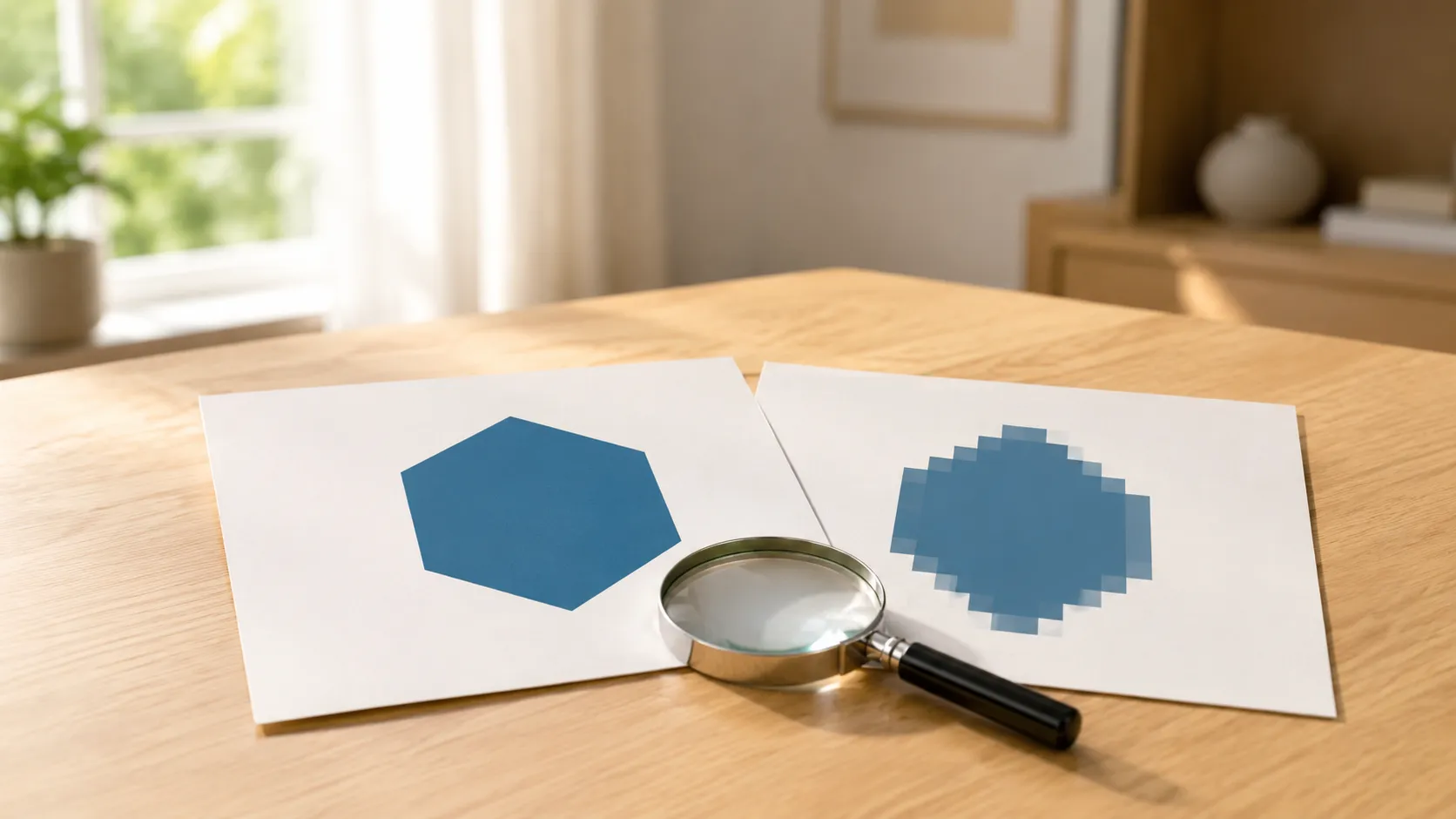
SVG stands for Scalable Vector Graphics. Unlike a PNG or JPEG, which stores an image as a grid of colored pixels, an SVG file describes the image as a set of mathematical instructions — lines, curves, shapes, and colors defined by coordinates and equations.
This is why SVGs can scale to any size without losing quality. A 100-pixel-wide logo and a billboard-sized version of the same logo use the exact same SVG file. The shapes are recalculated at whatever size you need them. This makes SVG the standard format for logos, icons, illustrations, and any graphic that needs to work across different sizes.
The downside is compatibility. While every modern web browser can display SVGs, most other software expects raster images (PNG, JPEG, TIFF). PowerPoint, Word, Outlook, social media platforms, printing services, and many CMS systems work better — or exclusively — with PNG or JPEG files. This is why SVG-to-PNG conversion is such a common need even though SVG is technically the superior format for many use cases.
When you convert SVG to PNG, you are “rasterizing” the image — turning those mathematical instructions into a fixed grid of pixels at a specific resolution. Once you choose a resolution (say, 1920 pixels wide), the image is locked at that size. Making it larger later will cause pixelation, which is the opposite of SVG’s whole advantage. So choosing the right resolution at conversion time matters.
📊 SVG-to-PNG conversion methods compared
| Method | Cost | Resolution Control | Best For |
|---|---|---|---|
| Vector Converter Tool | $2.99 one-time | Yes | Quick conversion with format flexibility (SVG, AI, EPS) |
| Browser + screenshot | Free | No | Absolute quickest for a single file if size doesn't matter |
| Inkscape | Free | Yes (detailed) | Designers, batch export, full editing control |
| CloudConvert / Convertio | Free (limited) | Some | Occasional conversions without installing anything |
| GIMP | Free | Yes | Users who already have GIMP installed |
Method 1: The browser workaround (free, instant, limited)
The fastest way to get a PNG from an SVG is to open the SVG in Chrome, Edge, or Firefox. The browser renders it as an image. Then right-click and select “Save image as…” — some browsers will offer PNG as a save option.
This works in a pinch, but it has real limitations. You get no control over the output resolution — the browser saves the image at whatever size it rendered on screen. If you need a specific pixel dimension (say, 512×512 for an icon or 3000 pixels wide for print), this method cannot help. You also lose any transparency the SVG might have if the browser renders it against a white background.
For grabbing a quick preview or a web-sized image, it does the job. For anything where resolution or quality matters, you need a proper conversion tool.
Method 2: A dedicated converter app
If you convert vector files more than occasionally, a dedicated converter is the most practical choice. The workflow is straightforward: select your SVG (or AI, or EPS), choose PNG as the output format, set your desired resolution, and convert.
The advantage over the browser method is control. You can specify the exact output dimensions, maintain transparency, and convert other vector formats beyond just SVG. The advantage over Inkscape or GIMP is simplicity — no learning a design application when all you need is a format change.
Some converter apps process files using cloud-based engines, which allows them to support a wider range of vector formats (including proprietary ones like AI and EPS) without requiring local rendering libraries. The trade-off is the same as any cloud tool: the file briefly leaves your machine for processing. For logos and public graphics, this is not a concern. For sensitive design work, it is worth knowing.
Method 3: Inkscape (free, powerful, complex)
Inkscape is a free, open-source vector graphics editor that handles SVG natively. It is the closest free equivalent to Illustrator, and it can export SVGs to PNG with full control over resolution, DPI, and export area.
To convert in Inkscape: open the SVG file, go to File → Export PNG Image (or press Shift+Ctrl+E), set your desired width and DPI, choose where to save, and click Export. You can export the entire drawing, a specific selection, or a custom area.
Inkscape is overkill if all you need is a format conversion. It is a full vector editor with layer management, path operations, text tools, and gradient controls. Installing it just to convert one file is like installing a video editing suite to trim a clip. But if you work with SVGs regularly — editing them, not just converting — Inkscape is the best free tool available.
The export quality is excellent. Inkscape renders SVGs accurately, handles transparency properly, and gives you precise control over the output dimensions. For batch conversion, you can use Inkscape’s command-line interface to process multiple files automatically, though this requires comfort with the terminal.
Method 4: Online converters
CloudConvert, Convertio, SVGtoPNG.com, and similar services offer browser-based conversion. Upload your SVG, set the output options (if available), and download the PNG.
The quality is generally fine for standard SVGs. Where online tools can struggle is with complex SVGs that use advanced features like filters, masks, or embedded fonts — the rendering engine may interpret them differently than a desktop application would. For simple logos and icons, this is unlikely to matter.
The usual trade-offs apply: your file gets uploaded to a third-party server, free tiers have daily limits, and complex or large SVGs may not convert correctly. For a quick one-off conversion of a non-sensitive file, online tools are fast and require nothing to install.
Method 5: GIMP
GIMP, the free open-source image editor, can import SVG files. When you open an SVG in GIMP, it asks you to set the rendering dimensions — this is where you choose your output resolution. Set the pixel width and height, click Import, and the SVG is rasterized on a canvas. Then export as PNG through File → Export As.
The results are decent for most SVGs. GIMP’s SVG rendering is not as sophisticated as Inkscape’s — complex vector effects may not render perfectly — but for logos, icons, and simple illustrations, it works fine.
Like Inkscape, GIMP is a full-featured application (image editor rather than vector editor) that is much more software than a format conversion requires. If you already have it installed, it is a reasonable option. If not, installing it just for SVG conversion is not worth the overhead.
Beyond SVG: dealing with AI, EPS, and other vector formats
SVG is an open standard, which is why browsers, Inkscape, and most conversion tools handle it well. Other vector formats are harder.
AI files (Adobe Illustrator) are Adobe’s proprietary format. Many AI files are saved with PDF compatibility, which means you can rename the .ai extension to .pdf and open them in any PDF viewer to see the content. But this only shows a flattened preview — you cannot extract individual elements or convert with full quality. For proper AI conversion, you need a tool that specifically supports the format.
EPS files (Encapsulated PostScript) are an older vector format still widely used in print production. Inkscape can open some EPS files but the compatibility is inconsistent. GIMP can import EPS files if Ghostscript is installed, but the setup is not trivial. A dedicated converter that supports EPS is the simplest path.
WMF/EMF files (Windows Metafile) are Microsoft’s legacy vector formats. They appear in older Office documents and clip art collections. Most Windows applications can render them, and conversion tools generally handle them without issues.
If you regularly receive files in AI, EPS, or other proprietary vector formats, a converter that supports multiple input formats saves you from installing separate tools for each one.
Choosing the right resolution
When converting SVG to PNG, the resolution you choose determines the quality and usability of the output. Here are practical guidelines:
For web use (social media, websites, email): 1x or 2x the display size you need. If the image will display at 400 pixels wide, export at 800 pixels for crisp rendering on high-DPI screens.
For presentations (PowerPoint, Keynote, Google Slides): 1920 pixels on the longer side is usually enough for full-screen display on a 1080p projector. For 4K displays, double that.
For print: This depends on the print size and required DPI. A standard rule is 300 DPI at the final print size. An image that will print at 4 inches wide needs to be 1200 pixels wide (4 × 300).
For app icons or favicons: These have specific required sizes — 512×512, 256×256, 192×192, etc. Check the platform’s specification and export at the exact required dimensions.
When in doubt, export larger than you think you need. You can always downscale a large PNG without losing quality. You cannot upscale a small one without introducing blur and pixelation.
Troubleshooting
Converted PNG has a white background instead of transparency. The SVG probably has a transparent background, but the converter rendered it against white. Make sure you are exporting as PNG (which supports transparency) and not JPEG (which does not). Some converters have a “transparent background” checkbox — make sure it is enabled.
Text looks different in the converted file. The SVG uses a font that is not installed on your system. The converter substituted the closest available font, which changed the appearance. If you have access to the original font, install it before converting. Alternatively, ask the person who created the SVG to convert the text to outlines before sharing — this embeds the letter shapes directly and removes the font dependency.
Complex SVG renders incorrectly. SVGs with advanced features (filters, clip paths, gradients, embedded images) may not render perfectly in all converters. Try a different tool — Inkscape tends to handle complex SVGs most accurately because it is a dedicated SVG editor.
Output file is blurry. The conversion resolution is too low for how you are using the image. Re-export at a higher resolution. If the SVG has very fine details, you may need a significantly larger output size for those details to remain crisp.
AI or EPS file will not open. These proprietary formats require specific support. Standard SVG converters do not handle them. Use Inkscape (limited compatibility), a dedicated converter that supports AI/EPS, or ask the sender to re-export the file as SVG or PDF.
FAQ
Can I convert SVG to PNG for free on Windows?
Yes. Opening the SVG in a browser and saving the image is free but gives no resolution control. Inkscape is free and offers full control. Online converters have free tiers for occasional use.
Will I lose quality when converting SVG to PNG?
Not if you choose a sufficient resolution. SVG is resolution-independent, so the PNG will look as sharp as you need it to — but only at the resolution you export. If you export too small and then enlarge the PNG, it will be blurry.
Can I convert PNG back to SVG?
Not well. Converting a raster image to a vector format requires “tracing” — the software guesses at the shapes from the pixel data. For simple graphics with solid colors and clean edges, tracing produces usable results. For complex images like photographs, the result is poor. Inkscape has an auto-trace feature (Path → Trace Bitmap) for this purpose.
What about JPEG instead of PNG?
JPEG works for photographs and images with many colors and gradients. PNG is better for logos, icons, and graphics with solid colors, text, or transparency. JPEG does not support transparency and introduces compression artifacts on sharp edges — which makes it a poor choice for most SVG-derived graphics.
Do I need Illustrator to open AI files?
Not necessarily. Many AI files saved with PDF compatibility can be viewed by renaming to .pdf. For actual conversion to PNG, you need a tool that supports the AI format — Inkscape has limited support, and dedicated converters handle it more reliably.
Can I batch-convert multiple SVGs at once?
Inkscape supports batch conversion through its command line. Some dedicated converters also offer batch processing. Online tools typically process one file at a time on free tiers.
Sources
- W3C SVG specification: w3.org/Graphics/SVG
- Inkscape: inkscape.org
- GIMP: gimp.org
- CloudConvert: cloudconvert.com/svg-to-png
Final takeaway
Converting SVG to PNG on Windows does not require design software. For a quick one-off, the browser workaround gets you an image in seconds. For proper conversion with resolution control and support for multiple vector formats including AI and EPS, Vector Converter Tool handles it for $2.99 without the learning curve of a design application. And for designers who want full editing and export control, Inkscape is free and more capable than most paid alternatives.
The main thing to remember: choose your export resolution before you convert. SVGs can scale to any size, but once you commit to a PNG, you are locked in. Export bigger than you think you need — your future self will thank you.
