
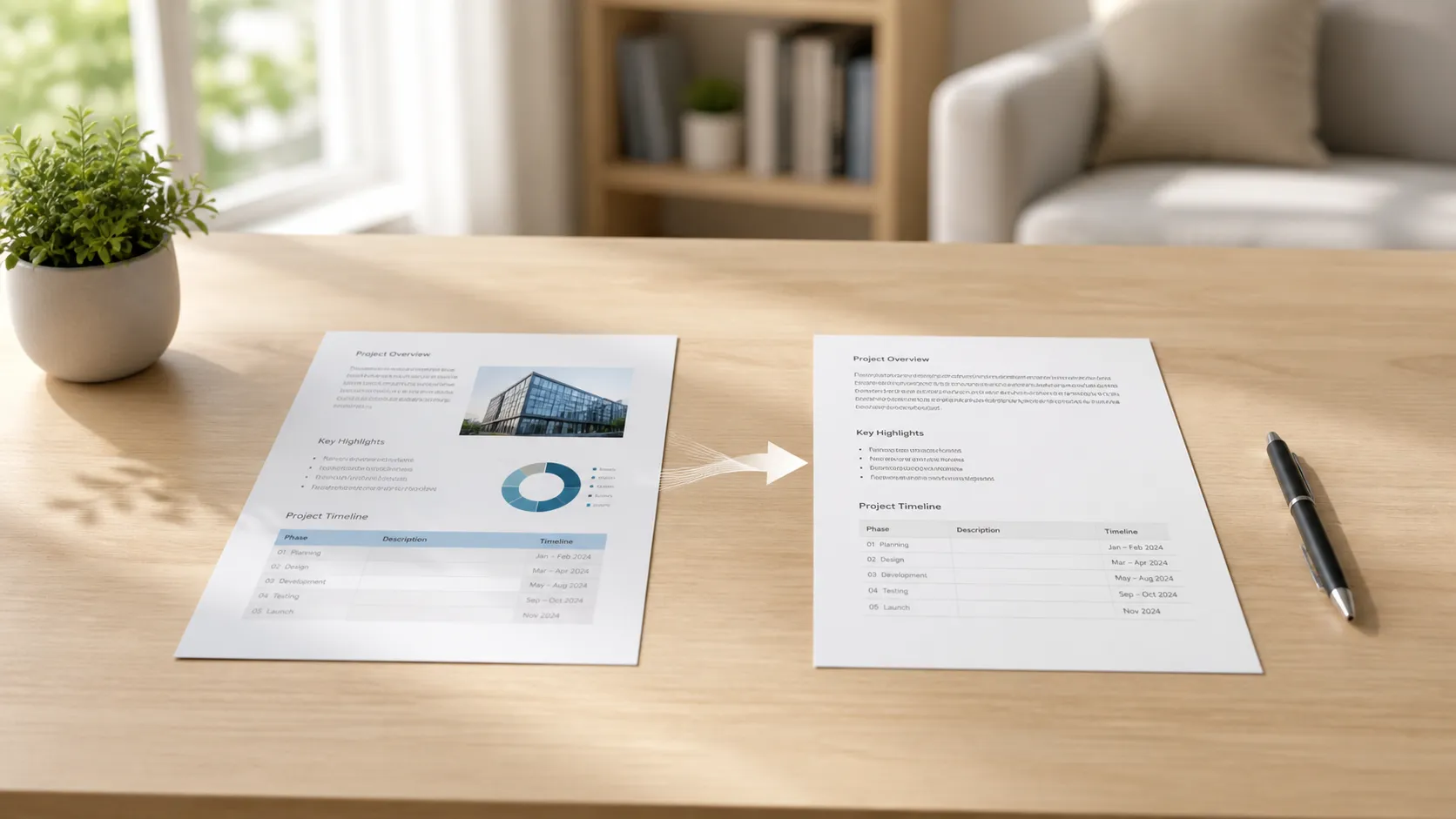
Someone sends you a PDF and asks you to “make a few changes.” Simple enough — except the PDF does not let you change anything. You cannot click into the text, cannot move things around, cannot fix a typo. The file just sits there, perfectly formatted and completely untouchable.
So you do what most people do: you search for “convert PDF to Word” and end up on a website that wants you to upload the file, wait for processing, and then download a .docx that looks nothing like the original. Tables are broken, fonts have changed, and the carefully designed layout has collapsed into something that resembles the original the way a police sketch resembles an actual person.
This is a solvable problem, but the solution depends on understanding why it happens in the first place. Not all PDFs convert the same way, and the method you choose matters more than most guides let on.
Quick answer: For text-heavy PDFs with simple layouts, Microsoft Word’s built-in converter works surprisingly well — just open the PDF in Word. For more complex files or batch conversions, a dedicated converter like PDF Conversion Tool handles a wider range of formats and keeps formatting more intact. The key thing to understand: no conversion is ever perfect, because PDF and Word are fundamentally different formats.
Why PDF-to-Word conversion is harder than it sounds
A PDF is not a document in the way most people think about it. It is a finished layout — a snapshot of how a page should look when printed. Every character is placed at precise coordinates, fonts are embedded at specific sizes, and elements like tables are not really “tables” at all — they are lines and text blocks arranged to look like tables.
A Word document works completely differently. Text flows from one paragraph to the next, tables are actual structured objects with rows and cells, and formatting is tied to styles that adjust automatically when you change something. When you add a sentence in Word, the rest of the document reflows to accommodate it. In a PDF, nothing reflows. Everything is fixed.
Converting from PDF to Word means taking the fixed layout and reverse-engineering it back into flowing content. The converter has to figure out which characters form a paragraph, where the columns are, what constitutes a table versus just adjacent text, and how the fonts map to something Word can use. It is an educated guess, not a direct translation.
This is why conversion quality varies so much. A simple one-column document with standard fonts converts almost perfectly. A two-column layout with headers, footers, embedded images, and custom fonts can come out looking like it was run through a blender.
📊 PDF-to-Word conversion methods compared
| Method | Cost | Best For | Handles Complex Layouts |
|---|---|---|---|
| PDF Conversion Tool | 3 free conversions/day, from $1.99/mo | Reliable conversion with broad format support | Good |
| Microsoft Word | Included with Office | Simple text-heavy documents | Fair |
| Adobe Acrobat Pro | ~$23/month | Professional use, highest accuracy | Very good |
| ILovePDF / Smallpdf | Free (limited) / $5-12/month | Quick one-off conversions in the browser | Fair to good |
| LibreOffice | Free | Budget option, no account needed | Poor to fair |
Method 1: Open the PDF directly in Microsoft Word
If you already have Microsoft Office installed, this is the fastest way to try a conversion. Right-click the PDF, choose “Open with,” and select Word. Word will display a warning that it is about to convert the file and that the result may not look exactly like the original. Click OK.
For straightforward documents — a letter, a report with standard formatting, a text-heavy contract — this works better than most people expect. Word does a reasonable job of detecting paragraphs, preserving headings, and keeping basic formatting intact. It struggles more with multi-column layouts, complex tables, and anything with precise visual positioning.
The main limitation is that Word’s converter treats PDFs as a secondary feature, not its core strength. It works with what it has, which means simple files convert well and complex files convert poorly. There is no in-between tuning you can do.
One thing to know: if the PDF was originally created from a Word document, the conversion quality tends to be significantly better. The underlying structure is already Word-like, so the reverse engineering is smoother. PDFs generated from InDesign, LaTeX, or other layout tools are harder to map back to Word’s model.
Method 2: Use a dedicated conversion tool
Dedicated converters exist because Word’s built-in option has limits. A tool designed specifically for format conversion can handle a wider range of source files and typically produces cleaner output for complex layouts.
The advantage of a dedicated converter is not magic — it is focus. These tools invest their entire engineering effort into understanding PDF structure and mapping it to Word as accurately as possible. They tend to handle tables, images, and multi-column layouts better than Word’s built-in converter because that is literally their only job.
On Windows, the Microsoft Store has options that make this straightforward. You pick your file, choose the output format, and get a Word document back. No complicated settings, no 14-step workflow.
Some conversion tools process files using secure cloud-based engines rather than running everything locally on your machine. This is a practical trade-off: cloud processing can support a wider range of file types and handle complex layouts more reliably because the conversion engine has more resources to work with. For most people, this is not an issue. If you are working with highly sensitive documents, it is worth knowing.
Method 3: Online converters
Online tools like ILovePDF, Smallpdf, and PDF24 offer browser-based conversion without installing anything. Upload the PDF, click convert, download the Word file. The process is fast and the results are decent for standard documents.
The trade-offs are the same ones that apply to any cloud-based document tool. Your file gets uploaded to a third-party server for processing. Most services encrypt in transit and delete files after processing, but the privacy policy varies. For a school assignment or a personal project, this is fine. For client contracts or medical records, you might prefer a different route.
Free tiers typically cap the number of conversions per day or limit file sizes. If you convert PDFs regularly, you will hit those limits.
Method 4: LibreOffice (free, offline)
LibreOffice Writer can open PDF files and convert them to editable format. It is free, open-source, and runs entirely offline. The conversion quality is the weakest of the bunch — it tends to break layouts more aggressively than Word does — but for simple documents where you just need the text, it is a viable free option.
The typical workflow: open LibreOffice Writer, use File → Open to select the PDF, edit what you need, then save as .docx. Expect to spend some time cleaning up formatting afterward, especially on anything beyond a single-column text document.
What determines whether your conversion will look good
Not all PDFs are equal, and the source file matters more than the tool you use. A few factors make the biggest difference.
How the PDF was created. A PDF exported from Word will convert back to Word much more cleanly than a PDF created in InDesign, Illustrator, or a specialized layout tool. The closer the source format is to Word, the better the round trip.
Single-column vs. multi-column. Single-column documents convert reliably. Multi-column layouts require the converter to guess where one column ends and the next begins, and the guesses are not always right.
Tables. Simple tables with consistent rows and columns usually survive conversion. Tables with merged cells, nested tables, or inconsistent column widths are where converters struggle most. If your PDF has complex tables, expect to fix them manually afterward.
Fonts. If the PDF uses standard fonts like Arial, Times New Roman, or Calibri, Word can match them directly. If it uses custom or embedded fonts that Word does not have, the converter substitutes the closest available font. This can change line lengths, which ripples through the entire layout.
Images and graphics. Embedded images usually transfer. Vector graphics and complex diagrams may not survive intact. Charts that look like images in the PDF might convert as actual editable objects, or they might not — it depends on how they were embedded.
The scanned PDF problem
If your PDF is a scanned document — essentially a photo of each page rather than searchable text — none of the conversion methods above will produce editable text. They will give you a Word document with an image on each page, which is technically a conversion but not a useful one.
Scanned PDFs need an extra step: Optical Character Recognition, or OCR. This is the process of analyzing the image, identifying the characters, and producing actual text from them. Once the text has been recognized, it can be converted to Word like any other text-based PDF.
Most dedicated conversion tools and Adobe Acrobat include OCR as part of their pipeline. Word’s built-in converter does not — it handles text-based PDFs only. If you regularly deal with scanned documents, this is a significant distinction when choosing your tool.
A quick way to check whether your PDF is scanned or text-based: open it and try to select text with your cursor. If you can highlight individual words, it is text-based. If clicking and dragging selects nothing or selects the entire page as a block, it is scanned.
Tips for getting the best conversion results
Start with the best source you can find. If you have access to the original Word or document file, use that instead of converting the PDF. The PDF is a one-way snapshot — going back always loses something.
Check the result immediately. Do not assume the conversion worked perfectly just because the file opened. Scroll through the entire document and look for shifted text, broken tables, missing images, and font substitutions.
Fix formatting in Word, not in the PDF. If you need to make changes, convert to Word first, then do all your editing there. Trying to edit in the PDF and then converting leads to worse results because you are adding complexity to an already imperfect process.
Use print-to-PDF to create a clean final copy. After editing in Word, export back to PDF using Word’s built-in PDF export. This creates a fresh, clean PDF rather than trying to modify the original.
For complex layouts, consider the screenshot approach. Sometimes the fastest path is not conversion at all. If you need to reuse a small section of a PDF — a paragraph, a data table, a specific page — it can be faster to retype it or use OCR to extract just that portion rather than converting the whole document and cleaning up the mess.
Troubleshooting
Converted document has the wrong fonts. The PDF used fonts that are not installed on your system. Word substitutes the closest match, which can change line spacing and paragraph breaks. Install the original fonts if you have them, or manually adjust the font in Word.
Tables came out as plain text. The PDF’s “tables” were not structured tables — they were text aligned with spaces or tabs. Convert first, then recreate the table structure manually in Word by selecting the text and using Insert → Table → Convert Text to Table.
Images are missing or low quality. Some converters downsample images during conversion to reduce file size. Try a different converter or check if there is a quality setting you can adjust.
The entire layout is wrong. The PDF likely has a complex layout that no converter handles well. Consider converting individual pages or sections instead of the whole file, or use Word only for the text content and rebuild the layout manually.
File will not convert at all. The PDF may be password-protected or corrupted. Try removing the protection first (if you have the password) or opening the file in a PDF viewer to confirm it is not damaged.
FAQ
Can I convert a PDF to Word for free on Windows?
Yes. Microsoft Word can open PDFs directly if you have Office installed. LibreOffice Writer is a fully free alternative. PDF Conversion Tool offers 3 free conversions per day. Online tools like ILovePDF also have free tiers.
Will the formatting be exactly the same after conversion?
Almost never. PDF and Word use fundamentally different approaches to layout. Simple text documents convert well. Complex layouts with tables, columns, and custom fonts will need manual cleanup. The conversion gets you 80-95% of the way depending on complexity.
Can I convert a scanned PDF to Word?
Only with OCR. A scanned PDF is essentially a photo, so it needs text recognition before conversion is possible. Most dedicated converters and Adobe Acrobat include OCR. Word’s built-in converter does not handle scanned PDFs.
Which method gives the best results?
Adobe Acrobat Pro produces the best conversions overall but costs $23/month. For most people, a dedicated conversion tool or Word’s built-in converter is good enough. The quality depends more on the source PDF’s complexity than on the tool.
Is it safe to upload PDFs to online converters?
Reputable services encrypt files in transit and delete them after processing. Whether that is sufficient depends on what the document contains. For sensitive material, an offline or locally-processing tool is the safer choice.
Can I convert Word back to PDF after editing?
Yes. In Word, go to File → Save As (or Export) and choose PDF. This creates a clean new PDF from your edited document.
Sources
- Microsoft Support: Edit a PDF in Word
- Adobe Acrobat pricing: adobe.com/products/acrobat
- LibreOffice: libreoffice.org
- PDF24: pdf24.org
Final takeaway
Converting a PDF to Word is one of those tasks that sounds like it should be simple and turns out to be complicated — not because the tools are bad, but because the two formats think about documents in completely different ways. For simple files, Word’s built-in converter handles the job. For anything more complex or for regular conversions, PDF Conversion Tool gives you 3 free conversions per day with reliable results across a wide range of file types. And if you are dealing with scanned documents, make sure whatever tool you choose includes OCR — otherwise you will get a Word file full of images instead of editable text.
The best advice is also the most boring: check the result before you send it. Every conversion needs a once-over, no matter which tool produced it.

