
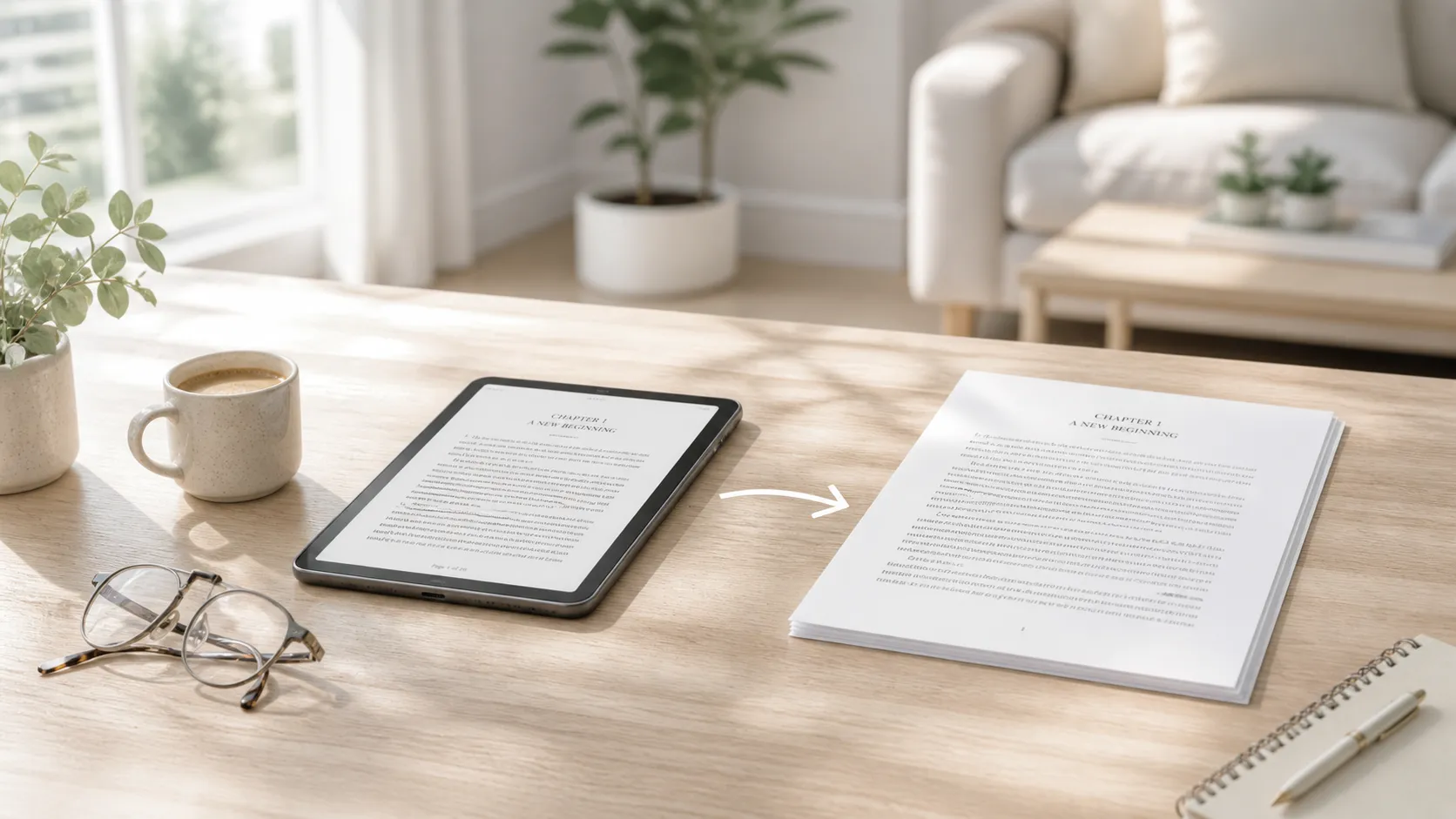
Someone sends you a book as an EPUB file. Or you download a free eBook from a library, an open-access publisher, or a course website. You try to open it on your Windows PC and realize there is no obvious way to read it. Windows does not open EPUB files natively. Double-clicking the file either does nothing or suggests apps you have never heard of.
So you think: “I will just convert it to PDF.” PDF opens everywhere — in Edge, in Chrome, on any device. It is the universal document format. Converting should be simple.
Then you search for how to do it and every result says “use Calibre.” You install Calibre, and instead of a simple converter, you get a full-featured eBook library management system with dozens of buttons, import workflows, metadata editors, and more settings than a recording studio mixer. For someone who manages hundreds of eBooks, Calibre is fantastic. For someone who just wants to turn one file into a PDF, it is dramatically more software than the task requires.
There are simpler paths. Here is how EPUB-to-PDF conversion actually works on Windows, and which approach makes sense depending on how often you need to do it.
Quick answer: For occasional conversions, online tools like CloudConvert or Zamzar handle EPUB to PDF quickly in the browser. For regular use without the complexity of Calibre, a simple desktop converter like eBook Converter Tool from the Microsoft Store ($2.99) converts EPUB, MOBI, FB2, and other formats to PDF without the library management overhead. Calibre remains the most powerful option if you also want to organize and manage an eBook collection.
📊 EPUB-to-PDF conversion methods compared
| Method | Cost | Best For | Complexity |
|---|---|---|---|
| eBook Converter Tool | $2.99 one-time | Simple, fast conversion without library management | Low |
| Calibre | Free | Power users managing large eBook libraries | High |
| CloudConvert / Zamzar | Free (limited) | Occasional one-off conversions in the browser | Low |
| EPUB to PDF (MS Store) | Free / varies | Basic conversion from the Microsoft Store | Low |
| Pandoc (command-line) | Free | Technical users, batch automation | High |
What is EPUB and why does it not open on Windows?
EPUB stands for Electronic Publication, and it is the most widely used open eBook format. Unlike a PDF, which locks content into fixed pages, EPUB is reflowable — the text adjusts to fit whatever screen you are reading on, just like a webpage. This makes it ideal for reading on phones, tablets, and e-readers where screen sizes vary.
Windows has never included a native EPUB reader. Microsoft Edge briefly supported EPUB files in older versions but dropped that support in 2019 when it switched to the Chromium engine. The result is that opening an EPUB on Windows requires either a reader app (like Calibre, Freda, or Sumatra PDF) or converting the file to a format Windows handles natively — which almost always means PDF.
The irony is that EPUB is technically the better reading format in most situations. It reflows, supports adjustable font sizes, and works beautifully on e-readers. But when you need to read something on a Windows PC, print it, or share it with someone who does not have an EPUB reader, PDF is the practical choice.
Why converting EPUB to PDF is not always straightforward
EPUB and PDF think about content in opposite ways. EPUB is flowing text that adapts to any container. PDF is a fixed layout that looks exactly the same everywhere. Converting between them means taking flexible content and locking it into rigid pages.
This conversion requires decisions: What page size? What font size? How wide should the margins be? Where should page breaks fall? An EPUB file does not contain any of this information because it was designed to let the reading device decide. The conversion tool has to make these choices, and different tools make different choices — which is why the same EPUB file can produce noticeably different PDFs depending on which converter you use.
For most text-heavy eBooks (novels, non-fiction, academic papers), the conversion works well regardless of the tool. The text flows onto pages, chapters get reasonable breaks, and the result is a perfectly readable PDF.
Where conversion gets trickier is with EPUBs that contain images, tables, complex formatting, or fixed-layout elements. A cookbook with full-page photos, a textbook with data tables, or an illustrated guide may not translate cleanly to PDF because the layout decisions are harder. These files usually still convert, but the results may need some tolerance for imperfect formatting.
Method 1: Online converters
If you need to convert one EPUB file right now and do not want to install anything, online tools are the fastest path.
CloudConvert is one of the most reliable options. Upload your EPUB, select PDF as the output, and download the result. The free tier allows 25 conversions per day, which is generous for occasional use. CloudConvert also lets you adjust page size, margins, and fonts before converting, which gives you some control over the output.
Zamzar is another established service. The interface is as simple as it gets: choose your file, pick the output format, convert. The free version has a 50 MB file size limit and caps conversions at two per day, but for a single eBook, that is usually enough.
ILovePDF / Convertio and similar services also handle EPUB to PDF with varying free tier limits.
The trade-off with any online converter is the same one that applies to any cloud service: your file gets uploaded to someone else’s server. For a publicly available eBook or a personal document, this is fine. For something you consider private, an offline tool is the safer choice. Most services encrypt files in transit and delete them after processing, but the privacy policy varies.
Method 2: A simple desktop converter
Between the online tools and Calibre’s full library system, there is a middle ground: lightweight desktop apps that just convert files.
The workflow is as simple as it sounds. Open the app, select your EPUB file, choose PDF as the output format, and convert. No library imports, no metadata editing, no organizational features — just format conversion.
Some conversion apps use cloud-based processing to handle a wider range of formats and produce more consistent output. This is the same trade-off as online tools (the file briefly leaves your machine), but packaged in a desktop app that is more convenient for repeat use.
The advantage over online tools is the app experience. No browser tabs, no upload waits, no free tier countdown. The advantage over Calibre is simplicity — you do not need to learn a library management system to convert one file.
Method 3: Calibre
Calibre is the most powerful eBook tool available for free, and it deserves its reputation. It is open-source, works on Windows, Mac, and Linux, and supports conversion between virtually every eBook format that exists. If you manage a large eBook collection — organizing, tagging, converting, and syncing to devices — Calibre is genuinely the best tool for the job.
For EPUB-to-PDF conversion specifically, Calibre offers more control over the output than any other option. You can set page size, margins, font size, line spacing, header/footer content, and even inject custom CSS to style the output. The conversion engine is mature and handles complex EPUBs better than most alternatives.
The barrier is the learning curve. Calibre’s interface presents everything at once. Your first experience is an import dialog, then a library view, then a conversion dialog with multiple tabs of settings. For a power user, this is feature richness. For someone who just wants a PDF, it is overhead.
If you are already a Calibre user or plan to manage eBooks regularly, use Calibre for conversion — you will not find a more capable tool. If you want to convert a file and move on, the interface gets in the way of a simple task.
The conversion workflow in Calibre: add the EPUB to your library → right-click → Convert books → Choose PDF output → Adjust settings if needed → OK → Wait for conversion → Save the PDF from your library to disk.
Method 4: Pandoc (command-line)
Pandoc is a free, open-source command-line document converter that handles EPUB to PDF (among dozens of other format combinations). If you are comfortable with the terminal, the command is straightforward:
pandoc input.epub -o output.pdfPandoc uses LaTeX for PDF generation by default, which means you need a LaTeX distribution installed (like MiKTeX or TeX Live). This produces high-quality typographic output but adds a significant installation step.
For technical users who already have Pandoc and LaTeX in their toolchain, this is the most efficient option — no GUI, no clicking, just a command. For everyone else, the setup cost is not worth it for occasional conversions.
What about DRM-protected eBooks?
This is an important limitation that applies to every conversion method. If the EPUB file has DRM (Digital Rights Management) protection — which is common for eBooks purchased from commercial stores like Kobo, Google Play Books, or some library lending services — no converter will be able to process it. The DRM encryption prevents the file from being read by anything other than the authorized reading app.
DRM-free EPUBs convert without issues. These include books from DRM-free publishers, open-access academic texts, Project Gutenberg books, and files from stores that sell without DRM (like some titles on Kobo or the Tor Books catalog).
If you are not sure whether your EPUB has DRM, try opening it in Calibre. Calibre will tell you if the file is protected and cannot be processed.
What affects conversion quality
Simple text-heavy books convert best. A novel, a non-fiction book, an academic paper — anything that is primarily flowing text with basic chapter headings converts cleanly in any tool.
Images depend on the tool. Some converters embed images at full resolution. Others downsample them. If your EPUB has important images, check the output to make sure they look acceptable.
Tables and complex formatting vary. EPUBs with data tables, code blocks, or multi-column layouts may not translate perfectly to the fixed-page model of PDF. The results are usually readable but may not match the original EPUB’s layout exactly.
Font handling differs between tools. Some converters use the fonts embedded in the EPUB. Others substitute system fonts. If the EPUB uses a specific typeface for readability or design, the PDF may look different depending on which fonts the converter applies.
Page size matters for readability. Converting to A4 or Letter size with small margins produces dense pages with a lot of text. If you plan to read on screen rather than print, consider smaller page sizes or larger font settings to make the result more comfortable to read.
Troubleshooting
Converted PDF has huge margins or tiny text. The default conversion settings may not match your needs. Try a tool that lets you adjust page size, margins, and font size. Calibre and CloudConvert both offer these controls.
Images are missing from the PDF. Some converters strip images to reduce file size or processing time. Try a different converter or check if there is a quality/image setting you can adjust.
Table of contents does not work. EPUB table of contents may not always translate into PDF bookmarks. Calibre handles this best — it can generate a PDF table of contents from the EPUB structure. Simpler tools may skip this.
File will not convert. The EPUB may be DRM-protected. Try opening it in Calibre to check. If it is DRM-free and still fails, the file itself may be malformed — try downloading it again from the source.
PDF pages are in the wrong order. This is rare but can happen with EPUBs that have unusual internal structure. Try converting with a different tool — the conversion engine may parse the EPUB differently.
FAQ
Can I convert EPUB to PDF for free on Windows?
Yes. Calibre is completely free and handles the conversion with full control over the output. Online tools like CloudConvert and Zamzar offer free tiers for occasional use. Microsoft Store also has free converter apps, though some have limitations.
Will the formatting look the same after conversion?
Not exactly. EPUB is a reflowable format and PDF is fixed-layout, so the conversion tool has to make decisions about page size, margins, and font size. Simple text-heavy books look great. Complex layouts may differ from the EPUB.
Can I convert other eBook formats too (MOBI, FB2, AZW)?
Yes. Most converters that handle EPUB also support other eBook formats. Calibre supports virtually every format. eBook Converter Tool handles EPUB, MOBI, FB2, AZW, and others. Online tools vary in format support.
Can I convert PDF back to EPUB?
Technically yes, but the results are usually poor. PDF’s fixed layout does not translate well back to EPUB’s reflowable model. The conversion often produces awkward line breaks and formatting artifacts. It is better to find the original EPUB source if possible.
What is the best conversion quality?
Calibre produces the highest-quality output because it offers the most control over typographic settings. For most people and most books, the quality differences between tools are minor — any decent converter produces a readable PDF.
Do I need an internet connection to convert?
Calibre and Pandoc work completely offline. Online tools obviously require a connection. Some desktop converter apps use cloud processing, which also requires internet.
Sources
- Calibre: calibre-ebook.com
- CloudConvert: cloudconvert.com/epub-to-pdf
- Zamzar: zamzar.com/convert/epub-to-pdf
- Pandoc: pandoc.org
- EPUB specification (W3C): w3.org/publishing/epub3
Final takeaway
Converting EPUB to PDF on Windows does not have to mean wrestling with Calibre’s library system or uploading files to random websites. For one-off conversions, an online tool like CloudConvert handles it in seconds. For regular use, eBook Converter Tool does the conversion for $2.99 with no library overhead and support for EPUB, MOBI, FB2, and other formats. And if you want maximum control and do not mind the learning curve, Calibre remains the most powerful option available.
The right choice depends on how often you convert and how much control you want. For most people, the simplest tool that produces a readable PDF is the right one.
