
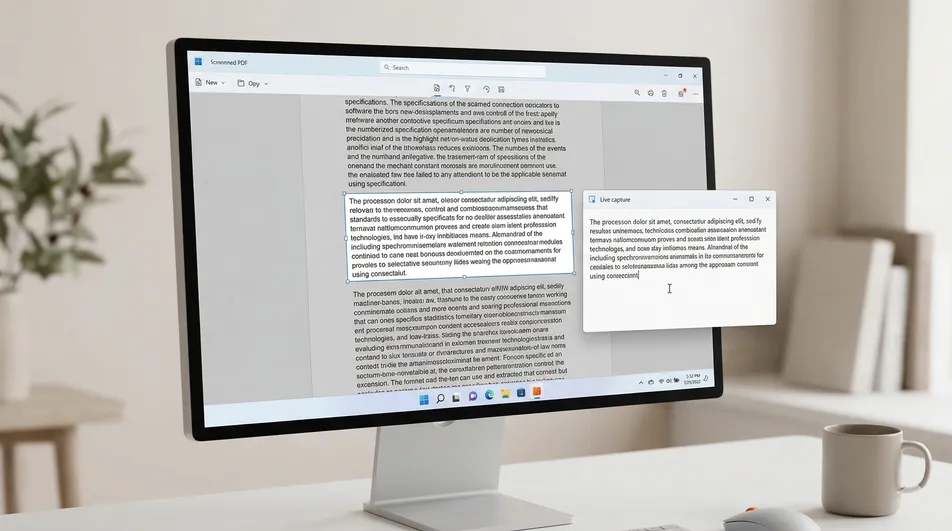
The “Unselectable” PDF Problem
The words are right there on the page, but your cursor will not highlight them. You drag across a sentence and either nothing happens, or the whole page gets selected like one flat picture. In most cases, the problem is not Windows at all. It is the way the PDF was created.
A PDF is not automatically a real text document. Some PDFs contain an actual text layer that you can select, search, and copy. Others are just images wrapped in a PDF container. And some contain normal text, but the creator has added copy restrictions that stop your reader from letting you grab it.
That distinction matters because copying text and extracting text with OCR are not the same workflow.
Quick answer: If text in a PDF is real and selectable, built-in viewers like Edge, Chrome, or Adobe Reader are usually enough. If the page behaves like one image, OCR is required. If the text looks normal but still refuses to copy, the file may have copy restrictions. For quick extraction of just the visible text, the most practical free path is to try built-in selection first. The most streamlined path is to use a visual OCR tool like Screenie OCR Text Recognition Tool, which captures the text directly from what you can already see on screen.
📊 Comparison: Best Ways to Extract Text
| Method | Works for Normal Text PDFs? | Works for Scanned PDFs? | Best For | Main Tradeoff |
|---|---|---|---|---|
| Edge / Chrome / Adobe Reader | ✅ Yes | ❌ No | Fast copying from real text PDFs | Fails when there is no text layer or copying is restricted |
| Online OCR / PDF converters | ✅ Yes | ✅ Yes | Whole-document conversion | Upload step, extra friction, often too much work for one paragraph |
| Full OCR editors or PDF suites | ✅ Yes | ✅ Yes | Heavy editing or full-document workflows | More setup and complexity than many users need |
| Screenie (visual OCR) | ✅ Yes | ✅ Yes | Quickly grabbing visible text from the screen | Best when you need a specific region, not a full PDF rebuild |
The honest version is simple. Built-in readers deserve credit: they are the best option when the file already contains real text. Online OCR tools can be convenient when you truly need to process an entire document. Full OCR editors can be powerful for larger workflows. But when your real situation is, “I only need this visible block of text right now,” a visual OCR tool is often the smartest middle ground.
What Actually Stops You from Copying Text
If you cannot copy text from a PDF on Windows, it is usually one of these three things.
1. The PDF is really a scan
A scanned PDF is often just an image inside a PDF file. The page may look perfectly readable, but your computer is not seeing words. It is seeing pixels.
That is why dragging the cursor may select the whole page as one big block instead of one word at a time. It is one of the clearest signs that the file has no real text layer.
What is a scanned PDF? A scanned PDF is a document where each page is stored as an image rather than as selectable text. It can look like a normal PDF, but copying fails because there are no real characters underneath the page image.
2. The PDF has copy restrictions
PDF files can include permissions that limit what the reader allows you to do. One common restriction is disabling text copying.
In that case, the text may be real and readable, but the software obeys the file’s rules and refuses to copy it.
Why can a PDF open normally but still not let you copy text? Because opening a PDF and copying from a PDF are separate permissions. A file can be readable on screen while still blocking content copying inside the viewer.
3. The page contains mixed content
Some PDFs are messy. One page may contain real selectable text in one section and embedded screenshots, diagrams, signatures, or scanned inserts in another. That creates confusing behavior: one paragraph copies normally, but the table beside it does not.
This is common in contracts, reports, forms, manuals, and exported business documents.
Why visible text is not always selectable Text that looks readable on screen may actually be part of an image, screenshot, chart, video frame, or app canvas. If there is no text layer, normal copy and paste will not work, even though the letters look clear to you.
How to Tell Whether the PDF Contains Real Text
Before you start converting files or installing heavy software, do one quick diagnosis.
Try to highlight one word
Open the PDF in Edge, Chrome, or Adobe Reader and try to highlight a single word in the middle of the page.
- If you can select individual words or lines, the PDF probably contains real text.
- If the whole page highlights like one rectangle or image, the page is probably scanned.
- If some parts select and other parts do not, the PDF likely contains mixed text and image content.
Zoom in and look at the letters
This is a useful insider clue that many articles skip.
If you zoom in and the letters look slightly blurry, uneven, or photo-like, the page may be image-based. Real text usually stays crisp when zoomed because it is being rendered as characters, not stretched like a picture.
Try Search
Press Ctrl + F and search for a word you can clearly see on the page.
- If search finds it, there is probably a text layer.
- If search finds nothing even though the word is right there, the page may be a scan or image-only content.
That said, a file can still have a text layer and block copying through permissions. So a searchable PDF is not automatically a copyable PDF.
What Users Usually Try First — and Why It Often Fails
Most people do the obvious thing first. They open the file in Edge, Chrome, or Adobe Reader and try to drag-select the text. When that fails, they assume Windows is broken or the PDF viewer is bad.
Then the bad path starts.
- They try a different PDF app and get the same result.
- They upload the document to a random online converter.
- They convert the whole PDF even though they only need one paragraph.
- They take a screenshot and manually retype the text.
- They waste time fixing the wrong problem because the issue is the file itself, not the reader.
That pattern happens because the symptom is the same across different causes. A locked PDF and a scanned PDF can both feel like “I cannot copy this text,” but the reason is completely different.
That is an important distinction:
- Scanned PDF: there is no real text to copy.
- Locked PDF: there may be real text, but the viewer is not allowing copying.
- Image inside PDF: only that part of the page needs OCR, not necessarily the whole document.
Built-In and Free Options Worth Trying First
Before jumping to OCR, it makes sense to try the simple path.
Edge, Chrome, or Adobe Reader
If the PDF contains real text and no copy restriction is blocking you, these built-in or common viewers are usually enough. Highlight the text, copy it, and move on.
This is the lowest-friction path and the right one when it works.
Searchable PDF but copy still fails
If the document is searchable but copy fails, the file may be restricted. In that case, switching viewers may not help because the restriction is part of the file rules.
OCR through a full converter
If the PDF is scanned and you need the entire file turned into searchable text, a full OCR workflow may make sense. This is more relevant when you are working with a long report, multiple pages, or archival documents.
The problem is that this approach is often disproportionate for normal real-world use. If all you need is one address, one quote, one paragraph, or one block from a screenshot embedded inside the PDF, converting the whole file is clumsy.
When OCR Is Actually Required
OCR stands for Optical Character Recognition. It reads visible letters from an image and turns them into actual text you can copy.
What is OCR? OCR is the process of recognizing text from an image, scan, screenshot, or other visual source and converting it into editable, selectable text.
You need OCR when there is no usable text layer to copy from directly.
That includes common cases like:
- a scanned contract or letter
- a photo turned into a PDF
- a table or diagram saved as an image inside the PDF
- a low-quality office scan
- a presentation slide exported into a PDF as images
- text visible in a video frame, screenshot, or app window
This is where many people waste time trying to “unlock” something that is not locked at all. There is simply no text there to copy in the first place.
The Smart Middle Ground: Visual OCR Instead of Full Conversion
If your goal is to capture only the text you can already see on screen, full-document OCR is often overkill.
That is where Screenie OCR Text Recognition Tool fits well. Instead of rebuilding the entire PDF, it extracts the text from the visible region you select on screen.
That makes it especially practical when:
- you only need a few lines, not the entire file
- the PDF contains one scanned page or one embedded screenshot
- you are copying text from a chart, image, or diagram
- the text is visible in a website, app, presentation, or video subtitle
- you do not want to go through a full PDF conversion workflow just to grab one small passage
Given these tradeoffs, the decision becomes straightforward:
- Use built-in copy when the PDF contains real selectable text.
- Use full OCR or conversion when you need document-wide processing.
- Use visual OCR when the real job is simply to capture visible text fast.
That is why Screenie works as a practical recommendation here. It is simpler than a full OCR editor, faster than converting an entire file for one paragraph, and better suited to “I need this text right now” situations.
How to Extract Text from a PDF on Windows in Under a Minute
These steps work especially well when the text is visible but not selectable.
-
Open the PDF in your usual viewer. Edge, Chrome, and Adobe Reader are all fine. You do not need to move the file anywhere.
-
Find the exact region you need. Scroll to the paragraph, caption, table, or image area that contains the text you want.
-
Check whether built-in copy works first. Try selecting one word. If normal highlighting works, just copy it directly and skip OCR.
-
Use Screenie when selection fails. Launch Screenie OCR Text Recognition Tool and activate the capture area.
-
Draw a box around the visible text. Select only the part you actually need. This usually improves speed and keeps the result cleaner.
-
Paste the extracted text where you need it. Once the capture is complete, paste it into Word, email, notes, Slack, or wherever you are working.
This visual approach is often faster than exporting, converting, or running OCR on an entire file when the real task is small.
High-Value Edge Cases That Confuse People
A scanned contract that looks normal
A scanned contract can look like a regular digital PDF because the letters appear sharp enough on screen. But if dragging your cursor selects the page like one image, OCR is required.
A PDF that is partly selectable
This is a strong clue that the file contains mixed content. The body text may be real, while signatures, screenshots, sidebars, or diagrams are image-based. In that case, use normal copy where it works and OCR only where it does not.
Text inside charts, tables, and screenshots
Even in a normal PDF, text inside embedded graphics often is not selectable. Standard PDF copying may work for the paragraphs but fail for the labels inside the chart. A visual OCR tool is usually the better fit for that region.
Low-resolution scans
OCR is not magic. If the source is blurry, crooked, heavily compressed, or low contrast, recognition accuracy can drop. This is not only about the tool; it is also about source quality.
Multi-column layouts
Some OCR workflows can get messy when a page has narrow columns, side notes, or overlapping visual elements. Selecting a smaller region instead of the entire page often gives a cleaner result.
That last point matters more than most people realize. Converting the whole PDF is not always smarter. When the layout is complicated, grabbing only the visible section you care about can produce better practical results.
Troubleshooting: If Extraction Is Still Messy
If you are getting poor or incomplete text, the file may not be the only problem. Try these checks.
The letters look blurry
Zoom in. If the scan is fuzzy, OCR accuracy will usually suffer. A cleaner zoom level or a tighter capture area can help.
The page has mixed content
Do not capture the whole page if only one box or paragraph matters. Pulling a smaller region often reduces confusion.
The layout has columns or side notes
Grab one column or one section at a time instead of trying to OCR the entire page in one pass.
The PDF seems locked
If you can search the text but cannot copy it, the file may be restricted rather than scanned. In that case, a visual OCR approach can still be the faster workaround for small extraction jobs.
You only need one short quote
Do not waste time converting the entire document. This is exactly the kind of situation where targeted visual OCR makes more sense than a full PDF workflow.
When a Full OCR Tool Makes More Sense
To keep this honest: Screenie is not the answer to every PDF problem.
A full OCR editor or document OCR workflow may be the better fit when:
- you need to convert the entire PDF into a searchable document
- you are processing many pages at once
- you need editing, annotation, or file reconstruction features
- you want to preserve document structure across the whole file
But that is not the same job as quickly getting text out of one visible region.
This article is really about a common, practical frustration: the text is on your screen, but normal copy does not work. For that exact problem, a visual OCR workflow is often the cleaner solution.
You can also explore other practical Windows guides in the RoxyApps blog if you deal with similar PDF, screenshot, or text-extraction problems.
Frequently Asked Questions
Why can’t I copy text from a PDF if I can read it clearly?
Because readable text on screen is not always real selectable text. The page may be a scan, an embedded image, or content with copy restrictions.
How do I know if a PDF is scanned or text-based?
Try to highlight one word and use Ctrl + F search. If the whole page behaves like one image or search cannot find visible words, the PDF is likely scanned or image-based.
Can a locked PDF and a scanned PDF feel the same?
Yes. Both can produce the same symptom: you cannot copy the text. The difference is that a scanned PDF has no text layer, while a locked PDF may contain real text but block copying through permissions.
What is the fastest way to extract text from a scanned PDF on Windows?
If you need the whole document converted, a full OCR workflow may be appropriate. If you only need a visible section quickly, a visual OCR tool like Screenie is usually faster and simpler.
Does OCR work only for PDFs?
No. OCR can also extract text from screenshots, scanned images, charts, apps, websites, presentations, and even video subtitles, as long as the text is visible on screen.
Why does only part of my PDF let me copy text?
That usually means the file contains mixed content. Some sections may be real text, while others are screenshots, scans, or embedded graphics that require OCR.
Is “OCR PDF” a special kind of PDF?
Not really. People usually mean a PDF that has had OCR applied so image-based text becomes searchable or extractable. It is a workflow description, not a separate PDF species.
Is converting the whole PDF necessary if I only need one paragraph?
Usually not. Whole-document conversion is often unnecessary when your real goal is to capture one visible paragraph, table cell, caption, or screenshot region.
Can I extract text from a locked PDF without rebuilding the whole file?
For a small visible section, yes. A visual OCR workflow can often get the text you need without forcing you into a full document conversion process.
