
The “Unselectable” PDF Problem
We’ve all been there: you open a PDF, go to highlight a specific sentence for a report or an email, and… nothing. Either the cursor doesn’t change at all, or the entire page turns into one giant, useless blue box.
It’s incredibly frustrating when you just need a single paragraph and you’re forced to choose between retyping the whole thing or spending twenty minutes “converting” a file.
Usually, the problem boils down to two things: The PDF is actually just a photo of a document (a scan), or the author has intentionally locked the “Copy” permission.
📊 Comparison: Best Ways to Extract Text
| Method | Handles Scans? | Speed | Ease of Use |
|---|---|---|---|
| Adobe Reader / Edge | ❌ No | Fast | High |
| Online Converters | ✅ Yes | Slow | Low (Privacy Risk) |
| Full OCR Editors | ✅ Yes | Slow | Moderate (Complex) |
| Screenie (OCR) | ✅ Yes | Instant | Very High |
The “Scan” vs. The “Lock”
If you can’t select text, it’s rarely a bug in your PDF reader. It’s almost always the file itself.
1. The “Image” PDF This happens most often with documents that were scanned at an office or emailed as a “Save as PDF” from a photo. Your computer doesn’t see “words”; it just sees a grid of pixels. You’re essentially trying to highlight a photograph.
2. The Permission Lock PDFs have a built-in security feature that allows creators to disable “Content Copying.” Even if the text is perfectly readable by the system, your software is being told: “Do not let the user copy this.”
Why the “Standard Fixes” Often Fail
The most common advice is to “Use an online converter.” While these can work, they come with a hidden cost. Most of these tools require you to upload your document to a third-party server. If that PDF contains a work contract, a bank statement, or personal info, you’ve just handed that data to a stranger.
Beyond that, full-scale PDF editors like Acrobat are often “overkill.” If you just need a three-sentence quote, opening a 500MB professional editing suite is like using a sledgehammer to hang a picture frame.
A Faster Way: Grab Text Visually
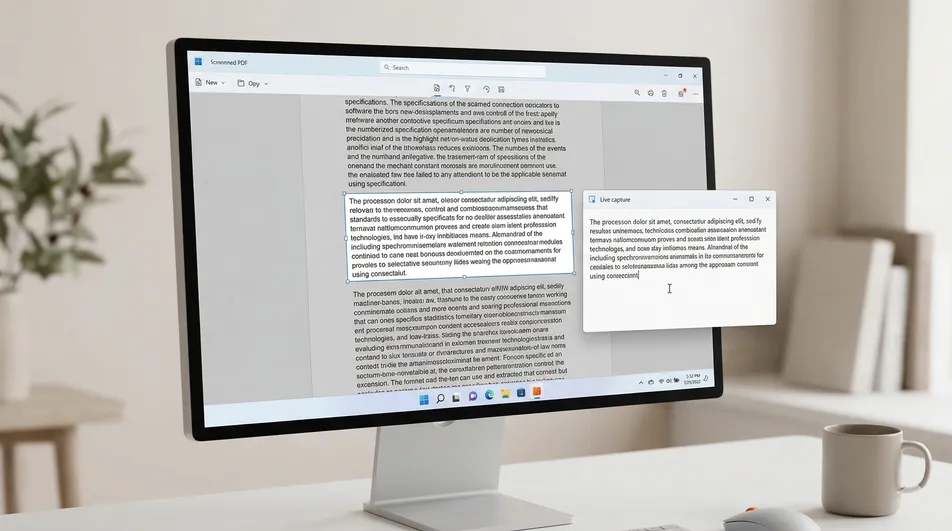
Instead of trying to “fix” the file or bypass its security, it’s often easier to just read what’s on the screen. This is where an on-screen OCR tool like Screenie comes in. Instead of processing the file, it processes the pixels you are already looking at.
- Bypasses Locks: Since it’s capturing the screen visually, “Copy Restrictions” don’t apply.
- Works on Scans: It turns images into text instantly using a high-speed recognition engine.
- Zero File Prep: You don’t have to convert, upload, or export anything.
Developer’s Insight: > “I built Screenie because I got tired of retyping text from Zoom presentations and locked PDFs. I wanted a tool that felt like a ‘digital highlighter’—if I can see it on my monitor, I should be able to copy it to my clipboard.”
How to extract text in under 5 seconds
- Open your PDF in any viewer (Edge, Chrome, or Adobe).
- Press the Screenie shortcut to bring up the selection tool.
- Draw a box over the text you want.
- Done. The text is now on your clipboard, ready to paste into Word, Slack, or your notes.
FAQ
Why does my PDF look like a photo? It likely is. If it was created by a scanner or an old mobile app, it’s stored as a bitmap. You need OCR (Optical Character Recognition) to turn those pixels back into text.
Is my data safe with Screenie? Yes. While the tool uses a cloud-based engine for high-accuracy recognition, your data is processed through secure, encrypted channels and is never stored or used for training.
Can I extract text from a video or a website? Yes. Since Screenie grabs text directly from the screen, it works on YouTube videos, protected websites, and even apps that don’t allow text selection.
