
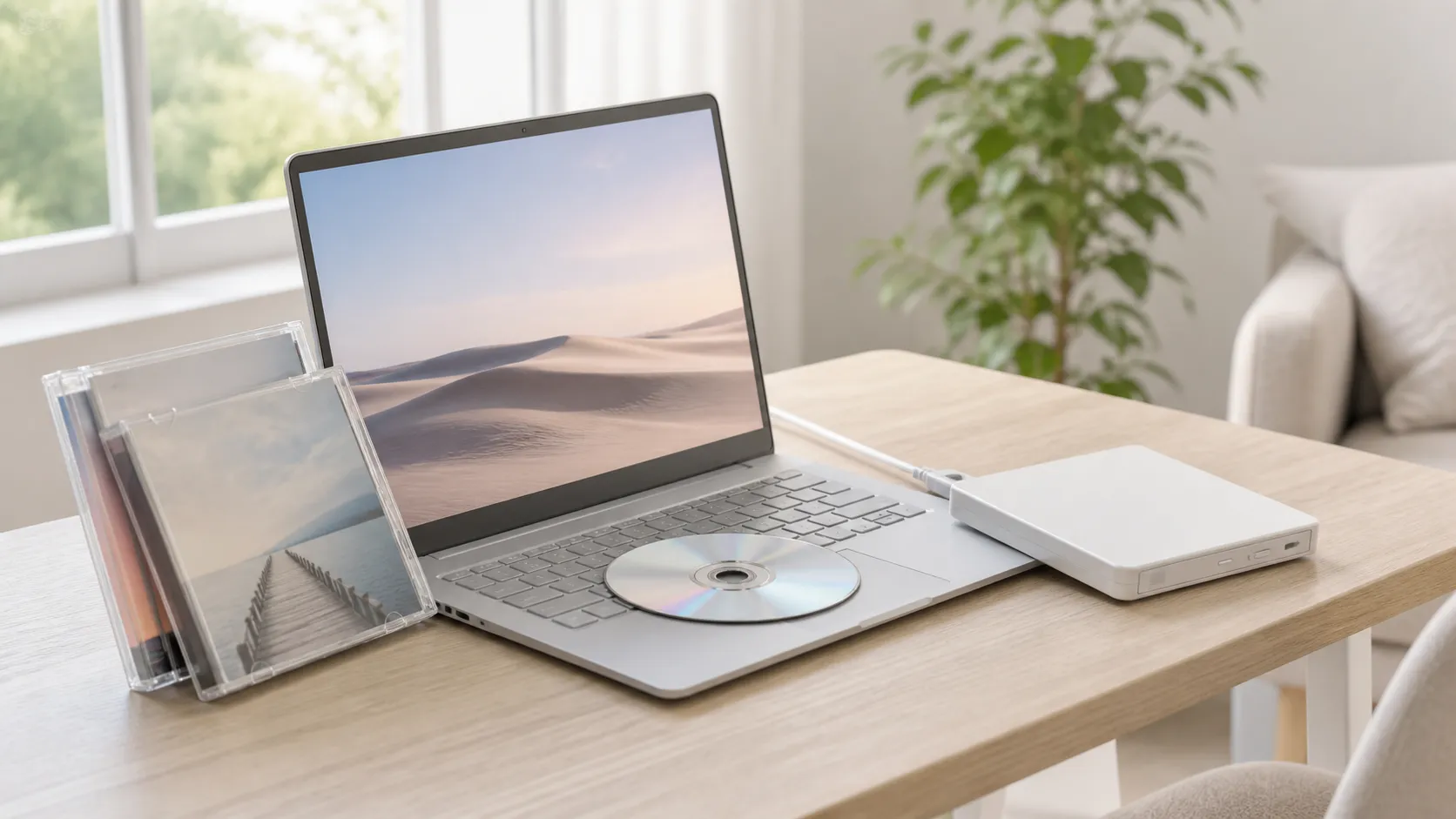
You plugged in a DVD drive, inserted a disc, and Windows 11 stared back at you blankly. Maybe it opened File Explorer and showed a VIDEO_TS folder full of files you cannot play. Maybe it suggested an app from the Microsoft Store. Maybe it did absolutely nothing.
This is not a broken computer. Windows 11 simply does not include DVD playback. Microsoft removed the licensed MPEG-2 decoder that older versions of Windows used, and it never came back. Every Windows 11 user who wants to watch a DVD needs a separate player app, and the options range from genuinely good to quietly frustrating.
This guide compares the players that actually handle physical disc playback on Windows 11 — not media players that technically list DVD support but were really built for video files.
Quick answer: VLC is free and works, but it is a general-purpose player that requires some navigation to get a disc playing. PotPlayer offers more customization for power users. Microsoft’s own Windows DVD Player costs $15 and has mixed reviews. If you want the simplest disc-focused experience — insert and play — MediaPlay DVD Player is free from the Microsoft Store and built specifically for this job.
Why Windows 11 does not play DVDs
A quick explanation, because this catches people off guard every time.
DVD movie playback requires a licensed MPEG-2 video decoder. In the Windows 7 era, Microsoft included this decoder in most editions. When Windows 8 arrived, they moved it to a separate “Media Center Pack” add-on. By Windows 10 and 11, it was gone entirely from the standard install. The licensing costs did not make sense for a feature that an increasingly small percentage of users needed as streaming took over.
The result is that Windows 11 can detect your DVD drive, recognize the disc, and read the files — but it cannot decode the video. You get the raw file structure instead of a movie. Solving this requires a player that brings its own decoder, and several free options exist.
📊 DVD player software for Windows 11 compared
| Player | Cost | Best For |
|---|---|---|
| VLC Media Player | Free | Users who already have it installed |
| PotPlayer | Free | Power users who want deep customization |
| MediaPlay DVD Player | Free (ads) / $12.99 one-time | Simplest disc playback — insert and watch |
| Windows DVD Player | $14.99 | Users who want Microsoft's official option |
| MPC-HC | Free | Lightweight player, retro interface |
| GOM Player | Free (ads) | Feature-rich with VR/360 support |
VLC Media Player
VLC is the default recommendation on every forum and tech blog, and for good reason. It is free, open-source, and handles an enormous range of media formats. It brings its own codecs, which means it does not depend on Windows for MPEG-2 decoding. You install it, and DVD playback becomes possible.
Where VLC is less polished is the disc playback experience itself. Opening a DVD is not always as simple as inserting the disc. Sometimes VLC auto-detects it. Sometimes you need to go to Media → Open Disc and manually select the drive. The DVD menu navigation can be inconsistent — some discs play menus smoothly, others require clicking through VLC’s own interface instead.
None of this is a dealbreaker for someone comfortable with media players. VLC is a tool built for people who know what they are doing, and it does nearly everything. But if you are setting up DVD playback for someone less technical — a parent, a grandparent, a kid — VLC’s general-purpose interface adds a layer of complexity that gets in the way.
The other thing worth knowing: VLC is not just a DVD player. It is a Swiss Army knife for media. That is its strength and its weakness. The interface serves dozens of use cases, which means the DVD experience is not its primary focus.
PotPlayer
PotPlayer is a free media player from Kakao (a Korean tech company) that has a dedicated following among power users. It handles DVD playback well and offers more granular control over video and audio settings than most other free players.
The appeal is customization. PotPlayer lets you tweak hardware acceleration settings, apply real-time video filters, adjust subtitle rendering in detail, and configure audio output precisely. If you care about getting the exact playback behavior you want, PotPlayer gives you more knobs to turn than any other free option.
The downside is that same complexity. The settings menu is deep, the interface is functional rather than intuitive, and the initial setup can feel overwhelming if you just want to watch a movie. PotPlayer also installs with optional bundled software during setup — pay attention to the checkboxes during installation.
For DVD playback specifically, PotPlayer handles menus and chapter navigation reliably. It is a strong choice if you also use it as your everyday media player and want a single tool for everything.
Windows DVD Player (Microsoft)
Microsoft’s own solution exists in the Microsoft Store for $14.99. It is a simple player that does exactly what the name says — plays DVDs. The interface is minimal, it handles disc menus, and it integrates naturally with Windows.
The criticism is the price. Paying $15 for a feature that used to be built into Windows feels unreasonable to a lot of people, especially when free alternatives exist. The Microsoft Store reviews reflect this — many are from users who feel they should not have to pay for something Windows used to include.
Functionally, it works. It is not buggy, it is not complicated, and it comes from Microsoft. Some users prefer it simply because they trust the source. If that peace of mind is worth $15 to you, it does the job.
One note: if you upgraded from a Windows 7 or 8 system that had Media Center, you might have received Windows DVD Player for free during the upgrade. Check the Microsoft Store to see if it shows as “Owned” before buying.
MediaPlay DVD Player
Where the other players on this list are general-purpose media tools that also play DVDs, MediaPlay is built specifically for disc playback. It is available from the Microsoft Store, free to use with ads, and a one-time $12.99 upgrade in the US removes the ads permanently. Prices may vary by market; check the current in-app Microsoft Store offer.
The design philosophy is focused: insert a disc and watch it. No digging through menus to find the disc option, no configuring codec settings, no accidentally opening a file browser instead of the disc. The interface is built around the assumption that you put in a DVD and want to see the movie.
It provides standard playback controls through a focused interface. It does not try to be a universal media player — it is not competing with VLC on format support or PotPlayer on customization. It is competing on simplicity for the specific task of watching a physical disc.
MediaPlay handles physical DVD discs, DVD and VIDEO_TS folders, and common digital video files. It does not support ISO images or Blu-ray discs. If you need ISO or Blu-ray playback, look elsewhere. If you need straightforward DVD and local video playback, this is the most direct route.
MPC-HC (Media Player Classic Home Cinema)
MPC-HC is a free, open-source, lightweight media player that has been around for years. The interface looks like it belongs in the Windows XP era — and that is part of its charm. It is fast, uses minimal system resources, and handles DVD playback reliably.
The project was discontinued for a while but was picked up by the community and continues to receive updates. It uses its own codecs (or can work with external codec packs) and supports DVD menus and chapter navigation.
MPC-HC is a good fit for users who want something minimal and are comfortable with a no-frills interface. It does not hold your hand, but it does not get in your way either.
GOM Player
GOM Player is a free media player from a Korean developer that supports DVD playback along with a wide range of video formats. It has a modern interface, supports VR and 360-degree video, and includes features like automatic subtitle search.
The free version includes ads, which some users find distracting during movie playback. GOM also tends to bundle additional software during installation — read the setup screens carefully.
For DVD playback specifically, it works. The interface is more polished than MPC-HC and less complex than PotPlayer. It sits in a middle ground that suits casual users who also watch a lot of digital video.
How to choose
The decision depends on what role DVD playback plays in your setup.
If you already use VLC for everything, just use VLC for DVDs too. You already know the interface, and adding DVD playback does not require installing anything new. The disc experience is not its smoothest feature, but it works.
If you want the most control, PotPlayer gives you more settings than any other free option. It is the choice for users who want to tune their playback experience precisely.
If you want the official Microsoft option and do not mind paying, Windows DVD Player is $14.99 and does the job without any surprises.
If you just want to watch a DVD without thinking about it, a dedicated disc player like MediaPlay is the least friction. No settings to configure, no general-purpose menus to navigate — insert the disc and it plays.
If you want lightweight and minimal, MPC-HC is fast, free, and does not try to be more than it is.
Common issues with DVD playback on Windows 11
Disc spins but nothing plays. You need a player with DVD decoding support. Windows 11 does not include one. Install any of the players above.
DVD menu does not respond to clicks. Some players handle DVD menus better than others. If menu navigation fails, try playing the main title directly — most players offer an option to skip the menu and go straight to the movie.
Playback stutters or freezes. Check that the DVD drive is connected directly to the laptop, not through a USB hub. Also make sure no other heavy applications are running — DVD decoding uses real CPU resources.
Audio plays but no video (or vice versa). This is usually a codec issue. Players like VLC and PotPlayer bring their own codecs and should not have this problem. If it happens, try a different player.
Region lock error. DVD discs and drives are assigned to geographic regions. If your disc’s region does not match your drive’s region, playback may fail. Most drives allow a limited number of region changes (usually 5 total) in Device Manager.
FAQ
Does Windows 11 have a built-in DVD player?
No. Windows 11 does not include DVD movie playback. You need a separate player app. Microsoft offers Windows DVD Player for $14.99, but free alternatives exist.
Is VLC the best free DVD player?
VLC is the most popular and most versatile, but “best” depends on what you need. For pure disc playback simplicity, a dedicated DVD app may be easier. For an all-in-one media tool, VLC is hard to beat.
Why does Microsoft charge for DVD playback?
Microsoft removed the licensed MPEG-2 decoder from Windows to reduce licensing costs. Windows DVD Player is a separate paid app that includes that decoder. Free alternatives use open-source decoders instead.
Can I play Blu-ray discs with these players?
Most free players, including VLC, have limited or no Blu-ray support due to DRM restrictions. Blu-ray playback typically requires paid software like CyberLink PowerDVD or Leawo Blu-ray Player.
Will an external USB DVD drive work with these players?
Yes. All the players listed work with any USB external DVD drive that Windows recognizes. The drive provides the hardware; the player provides the software decoding.
Can I play DVD files (ISO or VIDEO_TS folders) without a disc drive?
VLC, PotPlayer, MPC-HC, and GOM Player support both ISO files and VIDEO_TS folders. MediaPlay supports DVD and VIDEO_TS folders but not ISO images. Windows DVD Player is designed for physical discs.
Sources
- Microsoft Store: Windows DVD Player
- VLC Media Player: videolan.org
- PotPlayer: potplayer.daum.net
- MPC-HC: mpc-hc.org
- GOM Player: gomlab.com
Final takeaway
The DVD playback situation on Windows 11 is genuinely annoying — a feature that used to be built in now requires a separate app. But the good news is that several solid free options exist. VLC is the reliable all-rounder. PotPlayer is for power users. MPC-HC is for minimalists. And if you want the simplest possible DVD experience without configuring anything, MediaPlay DVD Player is free from the Microsoft Store and focused entirely on getting a disc playing with the least effort.
Pick the one that matches how you use your computer, install it before you sit down with a movie, and the problem is solved permanently.
