
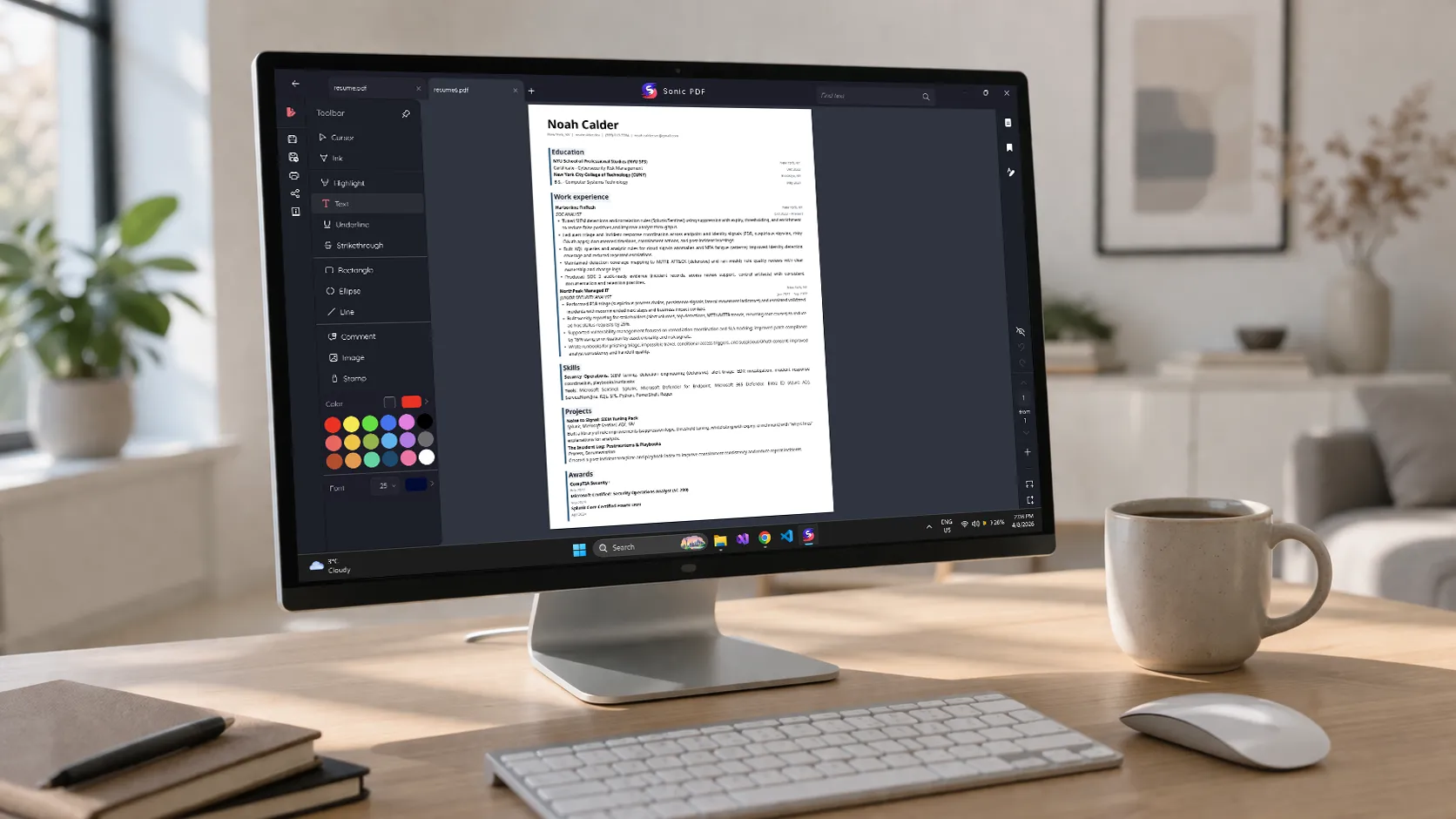
You need to make a change to a PDF. Maybe add a note, fill in a form, merge two documents, or place some text on a page. You open the file and realize Windows does not have a built-in PDF editor. So you search for one, and every result wants $15 to $25 per month.
Adobe Acrobat Pro. Nitro PDF Pro. Foxit PDF Editor. They all start with a free trial and then lock you into a recurring payment for features you might use twice a month. The subscription model makes sense for professionals who edit PDFs all day. For everyone else, it feels like paying rent on a tool you occasionally need.
The good news is that subscriptions are not the only option. Free tools, one-time purchases, and creative workarounds can handle most PDF tasks on Windows without ongoing costs. The catch is understanding what “editing a PDF” actually means — because it is not what most people think.
Quick answer: Most casual PDF tasks — annotations, adding text, filling forms, merging files, splitting pages — do not require an expensive subscription. Free tools like Sonic PDF handle these locally on Windows with no account and no recurring cost. For true text rewriting inside a PDF (changing existing words), you generally need Adobe Acrobat or a comparable paid editor, because PDFs were never designed to be edited like Word documents.
Why “editing a PDF” is misleading
This is the single most important thing to understand, and most PDF editor marketing actively obscures it.
A PDF is not a document you edit. It is a finished layout — closer to a printed page than to a Word file. When you create a PDF, the text is placed at exact coordinates on the page, fonts are embedded (or referenced), and the whole thing is locked into position. There is no “paragraph” in a PDF the way there is in a Word document. There are just characters placed at specific spots.
This is why “editing” a PDF is fundamentally different from editing a .docx file. When you change a sentence in Word, the surrounding text reflows automatically — paragraphs adjust, page breaks move, formatting stays consistent. When you change text inside a PDF, the surrounding content does not reflow. If you replace a short word with a longer one, it might overlap with the next word. If you delete a sentence, you get a blank gap instead of the text below moving up.
Even Adobe Acrobat Pro, the most powerful PDF editor available, handles text editing this way. It can modify existing text, but it is working within the constraints of a format that was never designed for editing.
This matters because it determines what you actually need. Most people who say “I need to edit a PDF” really mean one of these things:
- “I need to add a note or comment.” That is an annotation, and nearly every free tool does it.
- “I need to fill in a form.” That is form filling, and even the basic PDF viewers handle it.
- “I need to add text to a page.” That is text stamping or embedding, and many free tools support it.
- “I need to combine or split pages.” That is merging and splitting, a common feature in free tools.
- “I need to change the actual words in the document.” That is true content editing, and it usually requires a paid tool.
Understanding which of these you need saves you from paying $180 a year for something a free app can do.
What free and no-subscription tools can actually do
Annotations and markup
This is the most common real need. You want to highlight text, add a sticky note, draw a box around something, or write a comment in the margin. Every serious PDF tool — free or paid — handles this. If this is all you need, you are dramatically overpaying with a subscription editor.
Adding text to a page
Sometimes you need to type something onto a PDF — a date on a form that is not fillable, a label on a diagram, a note at the bottom of a page. This is called text embedding or text stamping, and it is different from changing existing text. You are placing new text on top of the existing content, like putting a sticky note on a printed page. Most free tools support this.
Form filling
If the PDF has fillable form fields, you can usually fill them in any PDF viewer — even Edge or Chrome. If the form is not fillable (it is just a flat layout with blank lines), you can use the “add text” feature in most tools to type where the blanks are. It is a bit clunky, but it works.
Merging and splitting
Combining multiple PDFs into one file or splitting a file into separate pages is a structural operation, not a content edit. Many free tools handle this well. On Windows, you can merge and split with apps like Sonic PDF or the dedicated Merge & Split PDF Tool.
Page operations
Rotating pages, reordering them, deleting unwanted pages, adding watermarks — these are page-level operations that most free and one-time-purchase tools support. You do not need Acrobat for this.
What free tools usually cannot do
Directly rewriting existing text. If you need to change “January 15, 2025” to “March 20, 2026” inside the document body, free tools generally cannot do this. The text is baked into the PDF layout, and modifying it requires the tool to understand the font, size, spacing, and position of each character. This is the feature that justifies expensive editors.
OCR on scanned documents. If your PDF is a scanned image rather than searchable text, making it editable requires Optical Character Recognition. Some free tools offer basic OCR, but the quality varies significantly. Adobe Acrobat has the best OCR engine. For a free alternative on Windows, you can use Screenie or OCR Text Recognition to extract the text first, then work with it in a text editor.
Advanced form creation. Building a fillable PDF form from scratch — with dropdown menus, checkboxes, and validation rules — generally requires Acrobat or a comparable form-building tool.
📊 No-subscription PDF options compared
| Tool | Cost | Annotations | Add Text | Merge/Split | Edit Existing Text |
|---|---|---|---|---|---|
| Sonic PDF | Free (1 op/day) / $7.99 one-time | Yes | Yes | Yes | No |
| PDF24 | Free | Limited | Yes | Yes | No |
| Foxit Reader | Free | Yes | Yes | No (paid) | No (paid) |
| LibreOffice Draw | Free | Basic | Yes | No | Limited (often breaks layout) |
| Adobe Acrobat Pro | ~$23/month | Yes | Yes | Yes | Yes |
The practical path for most people
If you are reading this guide, you probably do not need Adobe Acrobat. Here is how to figure out what you actually need:
If you need to annotate, highlight, or comment: Any free PDF viewer handles this. Even Microsoft Edge’s built-in PDF viewer supports basic markup. If you want more annotation options, use a tool like Foxit Reader or Sonic PDF.
If you need to add text to a page: Use a tool with text embedding. Open the PDF, click where you want to type, and add your text. Sonic PDF and PDF24 both support this.
If you need to merge, split, or rearrange pages: This is a common task that does not require a subscription. Sonic PDF handles merging, splitting, and watermarking — one free operation per day, or unlimited with a one-time $7.99 upgrade. If you only merge occasionally, the free tier is enough.
If you need to convert between formats: Converting a PDF to Word, or a Word file to PDF, is useful when you want to edit the content in a proper word processor and then re-export. Sonic PDF includes file conversion. Keep in mind that PDF-to-Word conversion is never perfect — complex layouts lose some formatting in translation.
If you genuinely need to rewrite text inside the PDF: This is the one case where a paid editor is hard to avoid. Adobe Acrobat Pro does this best. If you only need it once or twice, consider the 7-day free trial rather than committing to a subscription. Alternatively, convert the PDF to Word, make your changes, and convert back — the result will not be pixel-perfect, but it works for many use cases.
The subscription trap and how to avoid it
PDF editor pricing has shifted heavily toward subscriptions over the past decade. Adobe led the transition, and competitors followed. The result is that most PDF editing software now costs $10-25 per month, which adds up to $120-300 per year.
For a law firm or accounting office that processes PDFs constantly, this makes sense. For someone who edits a PDF a few times a month, it is expensive relative to the actual use.
The alternatives are real:
One-time purchase apps like Sonic PDF ($7.99 lifetime) give you annotations, text embedding, merging, splitting, watermarking, and conversion without recurring costs. You pay once and use the tool whenever you need it. The free tier (one operation per day for merge, split, watermark, and convert features) is enough for occasional use.
Completely free tools like PDF24 and Foxit Reader cover basic annotation and markup at no cost. PDF24 is particularly generous — it offers merging, splitting, and compression for free, both as a desktop app and a web tool.
The Word workaround is underappreciated. If you need to change content in a PDF, open it in Microsoft Word (or LibreOffice Writer). Word will convert it to an editable document. The conversion is imperfect — formatting may shift, fonts may change, tables may rearrange — but for text-heavy documents without complex layouts, it works surprisingly well. Make your changes, then export back to PDF.
Browser-based tools like ILovePDF and Smallpdf offer free tiers for occasional use. The tradeoff is uploading your document to their servers, which may or may not matter depending on the content.
Troubleshooting
Cannot type on a PDF form. The form might not have fillable fields. Try using the “add text” or “typewriter” tool to place text manually on the blank areas.
Annotations are not saving. Some PDF viewers open files in read-only mode. Check the app settings or try opening the file through the app directly rather than double-clicking the file.
Merged PDF is much larger than expected. Merging does not compress files — it combines them as-is. If the originals contain high-resolution images, the result will be large. Use a PDF compression tool afterward if size matters.
Converted PDF-to-Word file looks wrong. This is normal for PDFs with complex layouts, multiple columns, or embedded graphics. The conversion works best for simple, text-heavy documents. For complex layouts, consider editing the PDF directly rather than converting.
FAQ
Can I edit a PDF for free on Windows?
Yes, for most definitions of “edit.” Annotations, adding text, filling forms, and page operations (merge, split, rotate) are available in free tools. Directly rewriting existing text in the document body typically requires a paid editor.
Is there a PDF editor without a monthly subscription?
Yes. Sonic PDF offers a one-time purchase of $7.99 for unlimited use. PDF24 is completely free. LibreOffice Draw can open and make basic edits to PDFs at no cost. The subscription model is dominant among the well-known brands, but alternatives exist.
Why can I not just edit a PDF like a Word document?
Because PDFs are not documents in the traditional sense. They are finished layouts with text placed at fixed coordinates. They were designed for reliable viewing and printing, not for editing. This is a format limitation, not a software limitation.
Is Sonic PDF really free?
The core features — annotations, text embedding, form filling — are free with no time limit. Merge, split, watermark, and convert operations are limited to one free use per day. A one-time upgrade of $7.99 removes those daily limits permanently.
Can I convert a PDF to Word to edit it?
Yes. Microsoft Word can open PDFs directly and convert them to editable format. The conversion quality depends on the PDF’s complexity. Simple text documents convert well. Complex layouts with tables, columns, and images may lose formatting.
What about online PDF editors?
Services like ILovePDF, Smallpdf, and Sejda offer browser-based editing. They work well for quick tasks but require uploading your files to their servers. If privacy matters for the document, an offline tool is the safer choice.
Sources
- Adobe Acrobat pricing: adobe.com/products/acrobat
- PDF24: pdf24.org
- Foxit PDF Reader: foxit.com/pdf-reader
- LibreOffice: libreoffice.org
- PDF specification (ISO 32000): pdfa.org
Final takeaway
Most people do not need a PDF editor subscription. The tasks that feel like they require Acrobat — annotations, form filling, adding text, merging files — are available in free or one-time-purchase tools. The only feature that genuinely requires expensive software is rewriting existing text inside the document, and even then, the Word conversion workaround handles many cases.
Before you pay $23 a month, figure out what you actually need. If it is anything short of true content editing, Sonic PDF or a free tool like PDF24 will cover it — without the subscription.
