
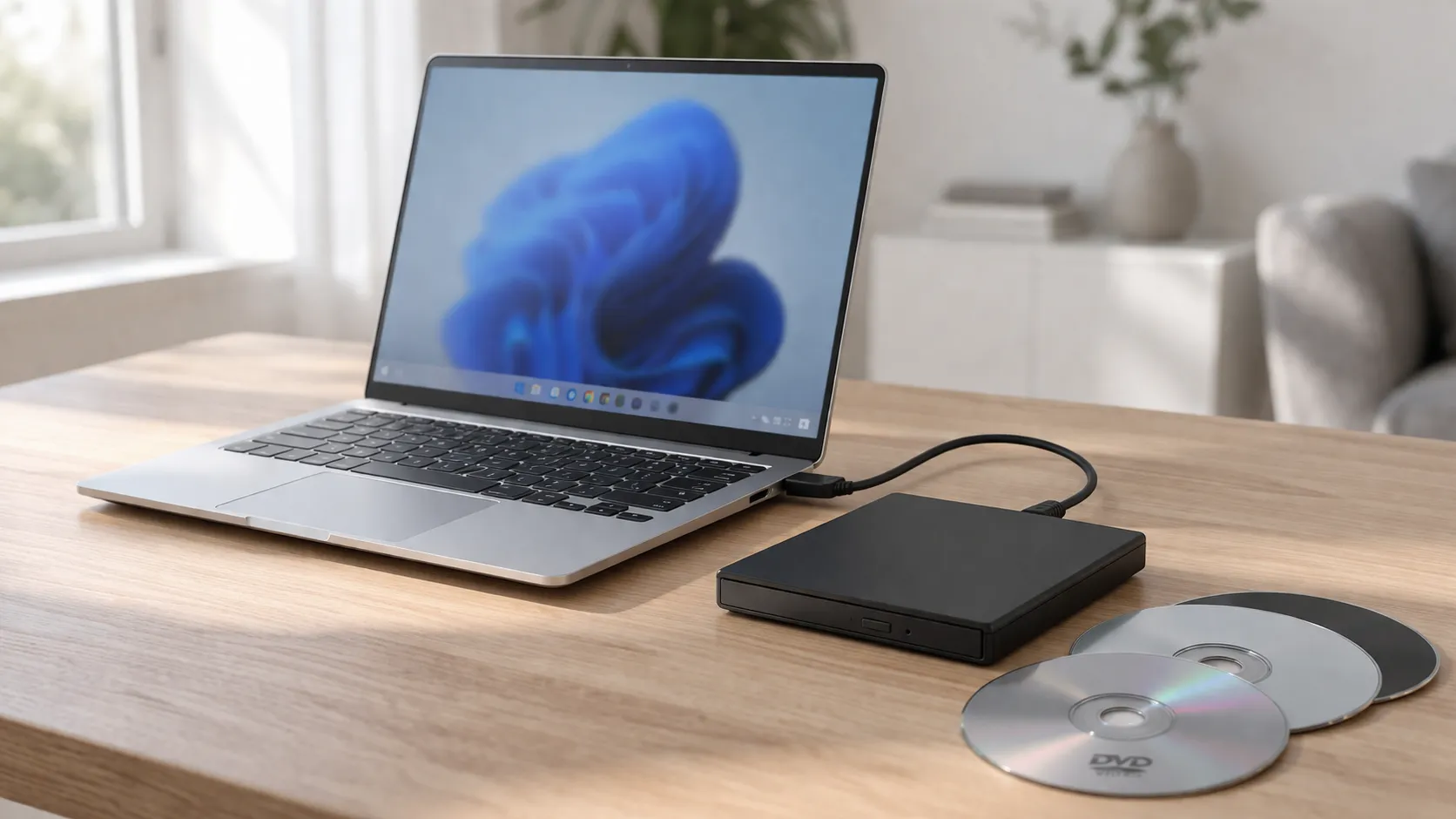
You want to watch a DVD on your laptop, but your laptop does not have a disc drive. So you look for an external USB drive, find one on Amazon for $25, plug it in, and expect it to work.
The drive arrives. Windows recognizes it. The disc spins. And then — nothing plays. File Explorer opens a folder full of .VOB files instead of starting your movie.
This is the experience most people have, and most buying guides never warn you about it. They compare drives by read speed, weight, and USB type, then stop. Nobody mentions that the hardware is only half the solution. Windows 11 does not include DVD movie playback out of the box, so even a perfectly good drive will not play your discs without the right software.
This guide covers both halves: which drives are worth buying, and what to do once you have one.
Quick answer: Most USB external DVD drives in the $20-40 range work fine with Windows 11. The ASUS ZenDrive U9M, LG GP65NB60, and Dell DW316 are all solid picks. The part most people miss: you also need DVD playback software because Windows 11 cannot play DVD movies natively. A dedicated player like MediaPlay DVD Player from the Microsoft Store handles this without codec-pack guesswork.
What to look for in an external DVD drive
Connection type
Most modern external drives use USB-A, and some include a USB-C adapter or come in a USB-C variant. If your laptop only has USB-C ports (common on ultrabooks and newer machines), make sure the drive either has a USB-C connector or that you have a reliable adapter. Avoid cheap adapters — a flaky connection causes the drive to disconnect mid-playback, which is worse than not having one at all.
Bus power vs. external power
Slim portable drives draw power directly from the USB port, which means no separate power cable. This is convenient, but it also means the drive is sensitive to how much power the USB port delivers. Plugging through a hub or a low-power port can cause the drive to spin up and immediately fail. If you plan to use the drive with a hub, look for one with external power.
Read and write speed
For DVD movie playback, speed barely matters. Even the slowest modern drives read DVDs faster than real-time playback requires. If you also plan to burn discs or rip content, look for 8x DVD write speed. For playback only, any current drive is fast enough.
Build quality and noise
Slim drives are more portable but often louder and more fragile. If you plan to travel with it, look for one with a solid casing and cable storage. If it lives on a desk, size matters less.
Blu-ray vs. DVD
Standard external DVD drives cost $20-40. Blu-ray drives start around $60-80 and go up from there. If you only need DVD playback, there is no reason to pay for Blu-ray capability.
📊 External DVD drives worth considering
| Drive | Connection | Price Range | Best For |
|---|---|---|---|
| ASUS ZenDrive U9M | USB-A + USB-C | ~$30-35 | Best overall — includes USB-C cable, M-Disc support, bundled software |
| LG GP65NB60 | USB-A | ~$20-25 | Budget pick — ultra-slim (14mm), lightweight, reliable |
| Dell DW316 | USB-A | ~$25-30 | Reliable brand — 200g, slim, good for Dell/Lenovo laptop users |
| ROOFULL External DVD Drive | USB-A + USB-C | ~$20-25 | Amazon bestseller — dual connector, budget friendly |
| Verbatim Slimline | USB-A | ~$25-30 | Trusted media brand — clean design, quiet operation |
A note about pricing: External DVD drives are commodity hardware at this point. The differences between a $20 drive and a $35 drive are real but small — build quality, noise level, included cables. The actual DVD reading performance is nearly identical across all of them. Do not overthink this purchase.
The ASUS ZenDrive U9M: why it edges ahead
The ASUS ZenDrive is the most commonly recommended drive for a reason. It includes both USB-A and USB-C cables in the box, which saves you from adapter hunting. The build quality is a step above the generic Amazon brands — it feels like an ASUS product rather than a white-label import. It supports M-Disc, which is an archival disc format that claims 1,000+ year data retention (whether you care about this depends on whether you archive data to disc).
ASUS also bundles CyberLink Power2Go and PowerBackup software, which is useful if you want to burn or back up discs. For pure DVD movie playback, you will still need a separate player — more on that below.
The main downside is price: at $30-35, it costs about $10 more than the cheapest options. Whether that premium is worth it depends on how often you use the drive.
Budget option: LG GP65NB60
If you just need something that works and do not want to spend more than $25, the LG GP65NB60 is the safe pick. LG has been making optical drives for decades, and this one is 14mm thin and light enough to forget it is in your bag. USB-A only, so USB-C laptop users will need an adapter.
It does not come with software, which is fine — the bundled software on most drives is not particularly useful for DVD playback anyway.
Drives to be cautious about
Amazon is full of unbranded external DVD drives in the $12-18 range. Some of these work perfectly well. Others have quality control issues: drives that disconnect randomly, make excessive noise, or fail after a few months. The reviews are often a mix of genuine buyers and incentivized reviewers, making it hard to judge.
If you buy an unbranded drive, check the return policy. The money you save is only worth it if you can return it easily.
Also be cautious about drives marketed as “DVD players” that are actually just data drives with no playback advantage. Every external DVD drive reads DVD movie discs the same way — the difference in playback experience comes entirely from the software.
The part nobody tells you: Windows 11 does not play DVDs
This is where most buying guides end and where the real frustration begins.
You plug in your new drive, insert a DVD, and expect Windows to just play it. Instead, you get one of these experiences:
- File Explorer opens and shows a
VIDEO_TSfolder full of.VOBand.IFOfiles - Windows asks you to choose an app, but none of the options work
- Windows Media Player opens but cannot decode the DVD video
- Nothing happens at all
This is not a defective drive. This is a software gap. Windows 11 can detect the disc and read the files, but it does not include the licensed MPEG-2 DVD decoding layer needed to actually play the movie. Microsoft removed native DVD playback support years ago, and it has not come back.
This means every external DVD drive purchase is actually a two-step process: buy the hardware, then set up the software.
How to get DVD playback working
Option 1: VLC Media Player (free)
VLC is the default recommendation on every forum, and it deserves that reputation. It is free, open-source, and handles most DVD discs without additional configuration. You install it, open the disc through VLC’s menu, and playback usually works.
Where VLC can feel less polished is the DVD-specific experience. It is a general-purpose media player, so the interface is not built around disc playback. Opening a DVD sometimes requires navigating through menus rather than the “insert and play” experience most people expect. For technical users, this is fine. For someone setting up a drive for a parent or grandparent, it adds a layer of complexity.
Option 2: A dedicated DVD player app
If you want the simplest path from “insert disc” to “watch movie,” a dedicated DVD app is the more practical choice. MediaPlay DVD Player is built specifically for disc playback on Windows — install it from the Microsoft Store, insert your DVD, and the app handles the rest.
The difference from VLC is not capability but focus. A dedicated DVD app skips the general-purpose interface and goes straight to what you actually want: playing the disc.
Option 3: Microsoft DVD Player (official)
Microsoft offers their own DVD Player app in the Microsoft Store. It exists, it works, and it is the official route. Some users prefer it simply because it has Microsoft’s name on it. It is worth knowing about, though it is not automatically the best option just because it is official.
Common problems after connecting a drive
Drive shows up in File Explorer but does not play the movie. This is the software problem described above. Install VLC or a dedicated DVD app.
Drive disconnects or stutters during playback. Try connecting directly to the laptop instead of through a hub. If you are using a USB-C adapter, try a different one. Make sure the laptop is plugged into power — some laptops reduce USB power delivery on battery.
Drive makes loud spinning noises. Some level of noise is normal for optical drives. If it is unusually loud or sounds like grinding, the drive may be defective — return it.
Disc is not recognized at all. Try a different disc first to rule out a dirty or scratched disc. If no disc works, check Device Manager to see if Windows recognizes the drive hardware. If the drive appears but discs do not, the drive’s laser may be faulty.
Video plays but there is no audio. This is usually a codec issue. VLC and dedicated DVD apps handle their own audio decoding. If you are trying to play through a different app that lacks DVD audio support, switch to one that has it.
FAQ
Do I need a special external drive for Windows 11?
No. Any standard USB external DVD drive works with Windows 11. The operating system recognizes optical drives natively. The issue is playback software, not hardware compatibility.
USB-A or USB-C — which should I get?
If your laptop has USB-A ports, get a USB-A drive. If it only has USB-C, get a drive that includes a USB-C cable (like the ASUS ZenDrive) or budget for a good adapter. Avoid the cheapest adapters — they cause connectivity issues.
Can I burn DVDs with these drives too?
Yes. All the drives listed above can read and write both CDs and DVDs. You will need burning software — Windows has basic disc burning built in, or you can use free tools like ImgBurn or CDBurnerXP.
Why is my DVD region-locked?
DVD region coding is a system where discs and drives are assigned to geographic regions. A Region 1 disc (North America) may not play in a Region 2 drive (Europe). Most drives allow a limited number of region changes (usually 5), after which the region is locked permanently. Check your drive’s region setting in Device Manager under DVD/CD-ROM drives → Properties → DVD Region.
Do these drives work with Mac too?
Yes, all the listed drives work with macOS. Mac has similar DVD playback limitations — you will need a player app on Mac as well. The Apple DVD Player app works if your Mac supports it, or VLC works on both platforms.
Is it worth buying a Blu-ray drive instead?
Only if you have Blu-ray discs to play. For DVD playback, a standard DVD drive is sufficient and costs half as much. Blu-ray drives also require separate Blu-ray playback software, which adds another layer of setup.
Sources
- Amazon Best Sellers: External CD & DVD Drives
- Laptop Mag: Best External DVD Drives in 2025
- The Tech Lounge: Best External CD/DVD Drives in 2026
- ASUS: ZenDrive U9M Product Page
Final takeaway
Buying an external DVD drive for your Windows 11 laptop is straightforward — most drives in the $20-35 range work fine. The ASUS ZenDrive U9M is the safest all-around pick. The LG GP65NB60 and ROOFULL drives are solid budget options.
The part most guides skip: plugging in the drive is only half the job. Windows 11 does not play DVD movies natively, so you need playback software too. VLC is the free route. MediaPlay DVD Player is the simplest route if you want to insert a disc and watch without fiddling with settings. Either way, set up the software before you sit down with the popcorn — you will be glad you did.
